What is the PayrollX Employer App?
It is the official Android app for employers to manage HR work on the go — staff, attendance, leaves, expenses, and company settings.
The PayrollX Employer App is an Android mobile app for business owners and HR managers. You can manage employees, attendance, leaves, holidays, expenses, announcements, departments, designations, shifts, and settings from your phone. Data syncs with the PayrollX employer web portal.
The PayrollX Employer App is an Android mobile app for business owners and HR managers. You can manage employees, attendance, leaves, holidays, expenses, announcements, departments, designations, shifts, and settings from your phone. Data syncs with the PayrollX employer web portal.
Short answers in plain English — useful for people and for chat assistants reading this page.
It is the official Android app for employers to manage HR work on the go — staff, attendance, leaves, expenses, and company settings.
Business owners, HR managers, and admins who already have a PayrollX employer account.
Yes. Changes in the employer app sync with the PayrollX employer web dashboard in real time.
Yes. Employees use a different Android app to punch attendance and apply for leave. Employers use this Employer App to manage and approve everything.
Download from Google Play: PayrollX Employer app (package com.payrollx.payroll).
Each section below explains one feature in simple words, lists what you can do, how to use it, and shows real app screenshots.
See your company status in one glance.
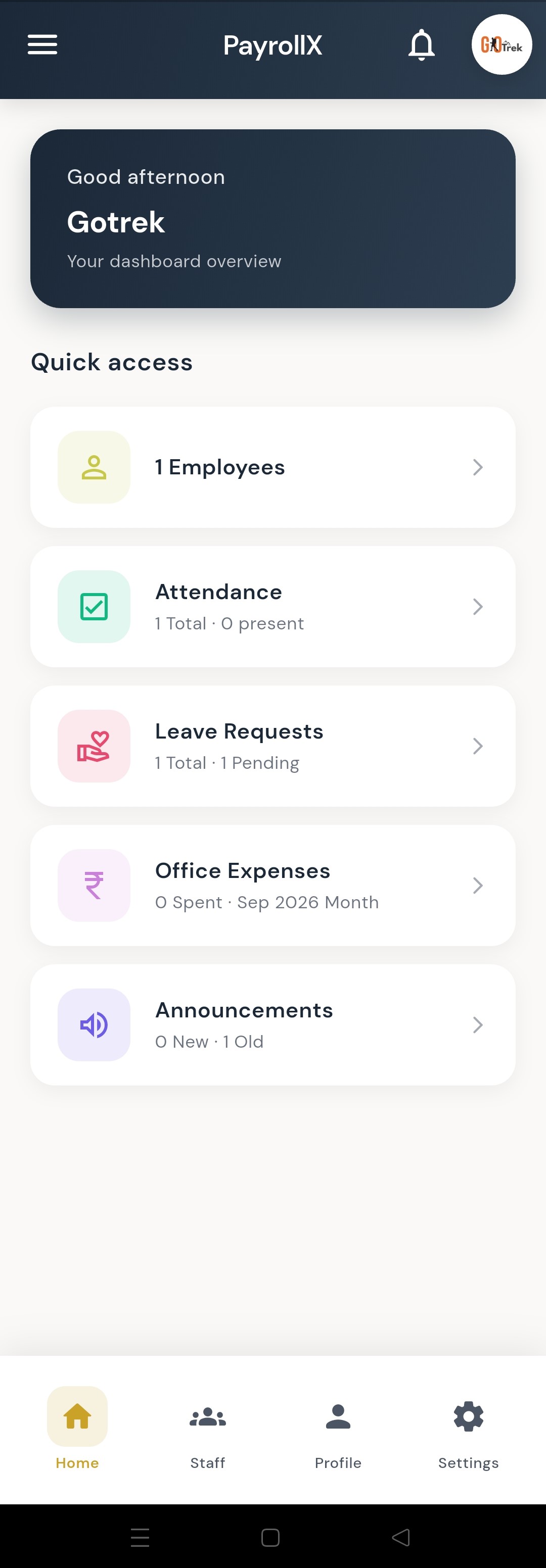
The home screen is your daily overview. It shows how many employees you have, today’s attendance, leave requests, expenses, and announcements.
Open the app after login. The first screen is Home. Tap any card to open that module.
View and manage your employer profile.
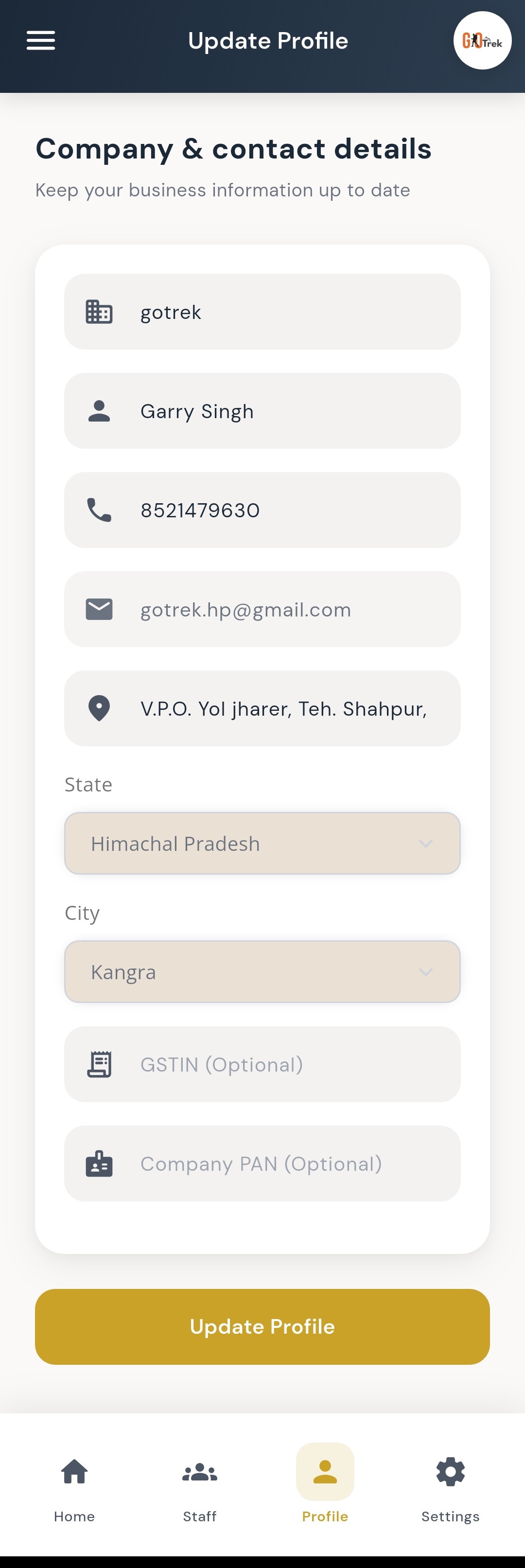
Your company profile shows business name, contact person, phone, email, and address details used across PayrollX.
Open Profile from the bottom menu or sidebar. Review details and update them when needed from the linked profile screens.
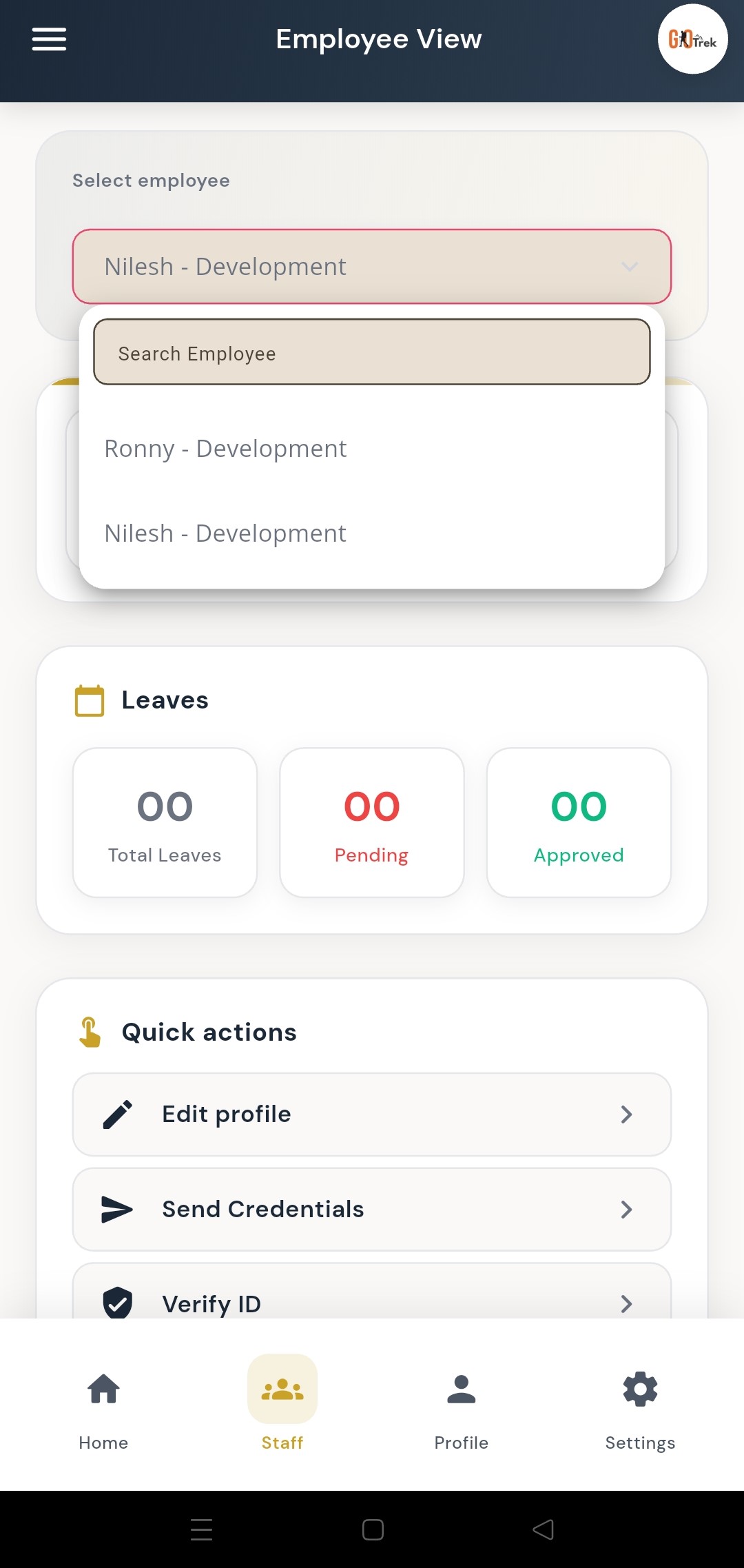
Add, edit, search, and manage staff.
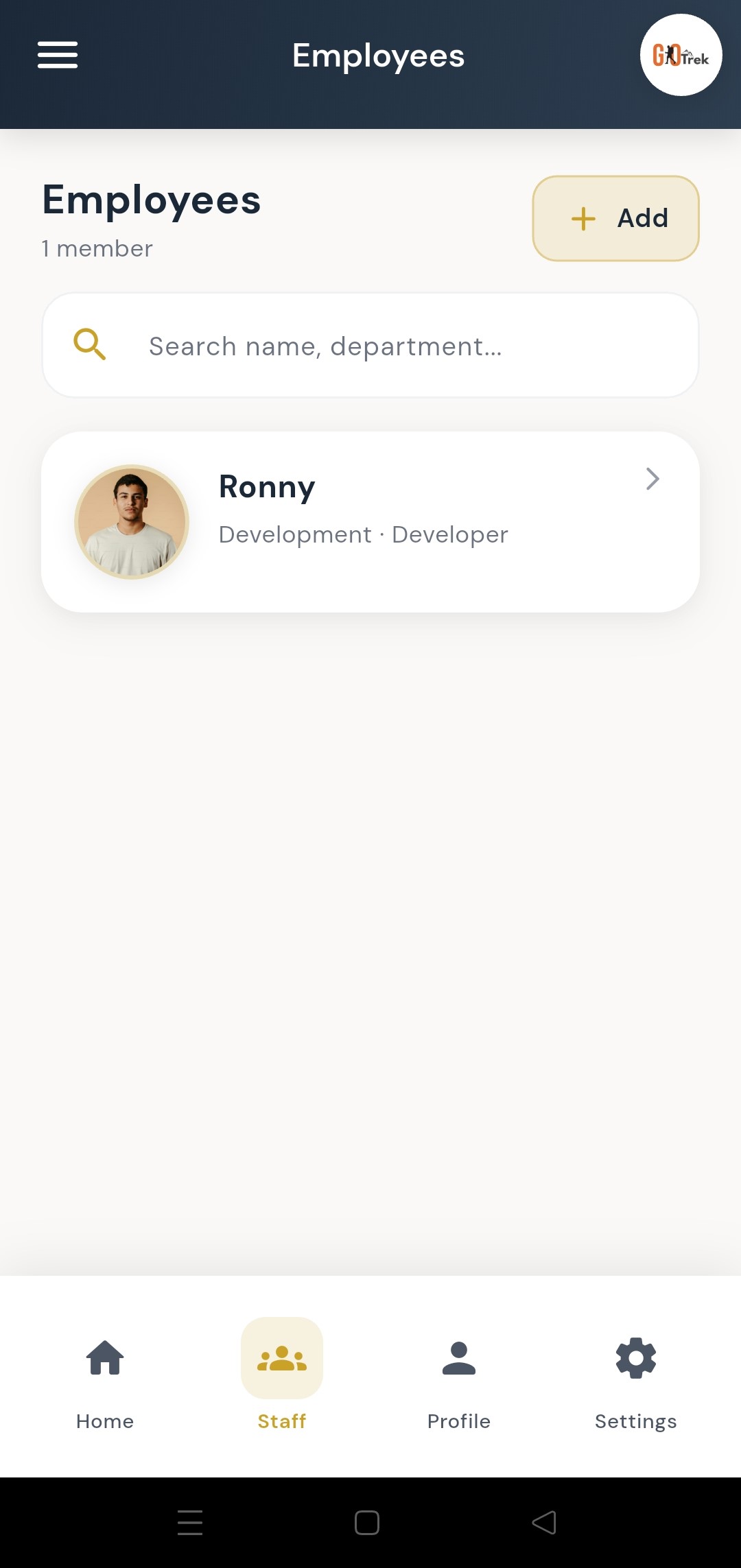
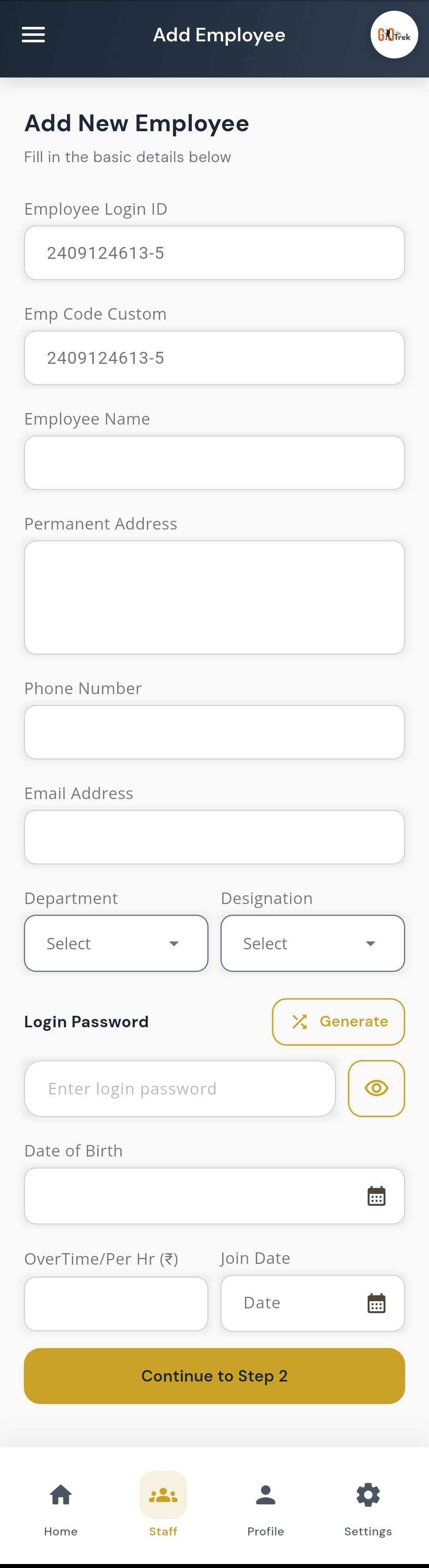
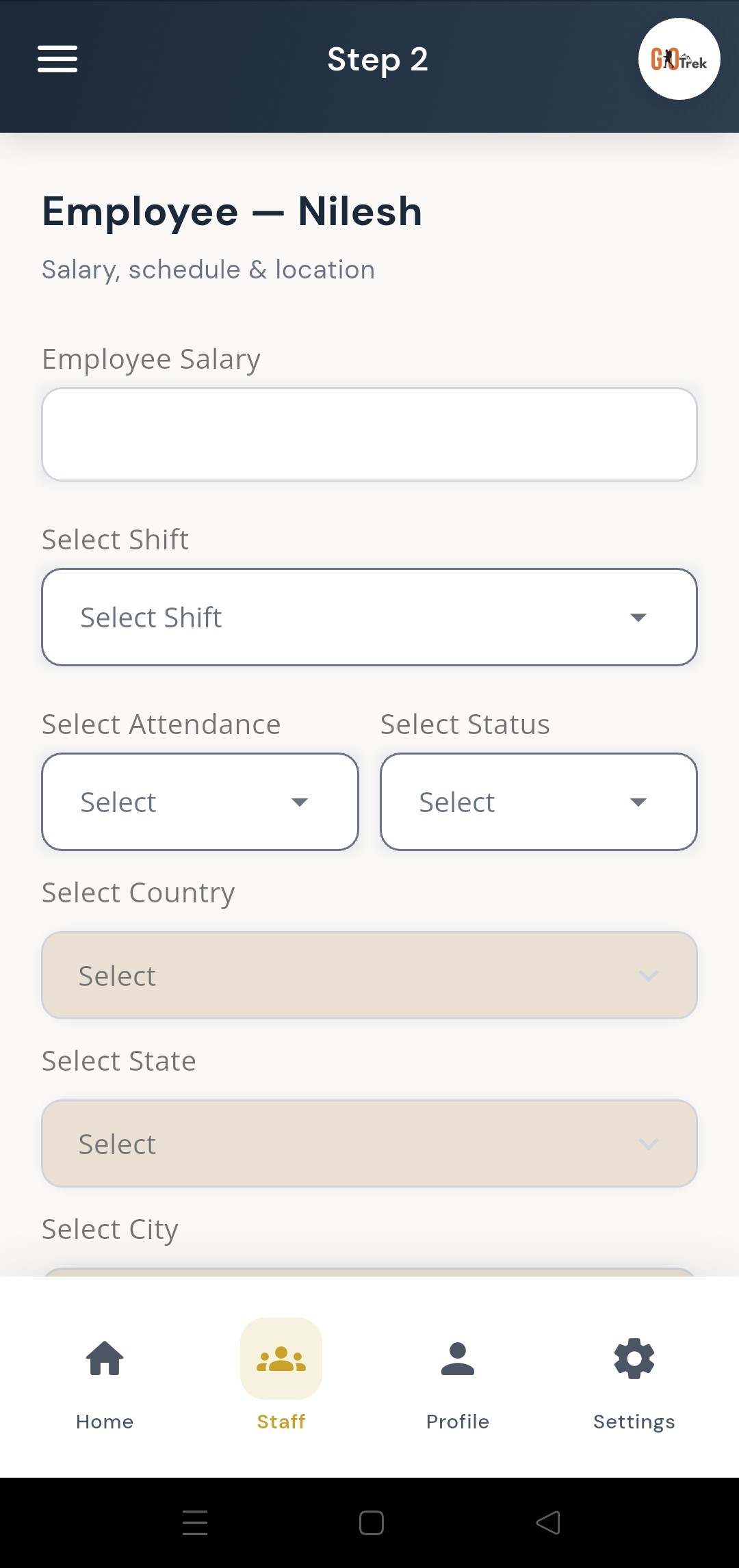
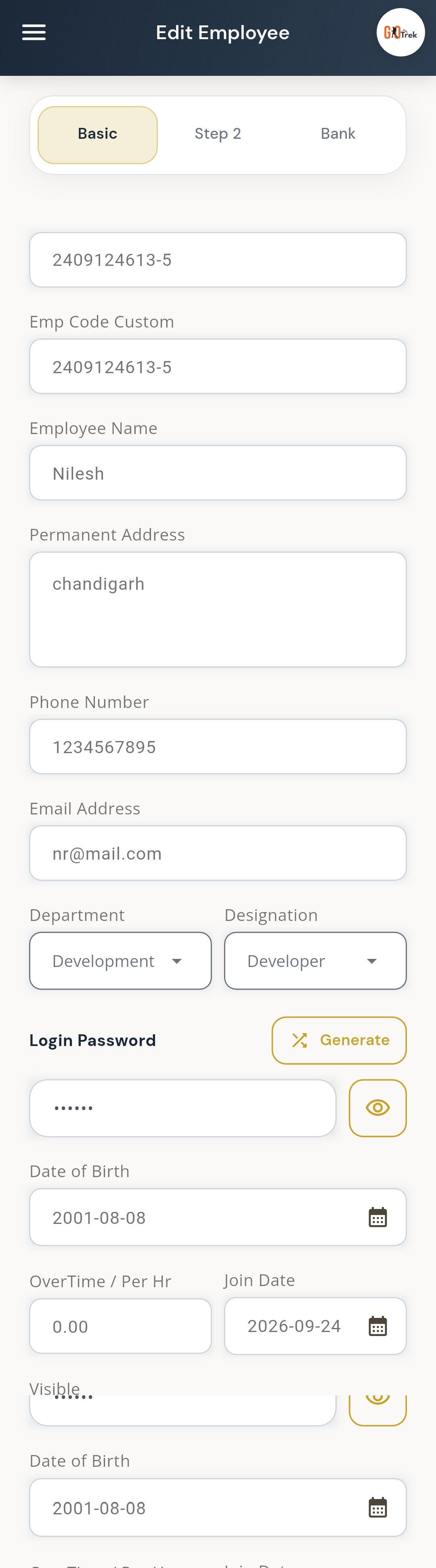
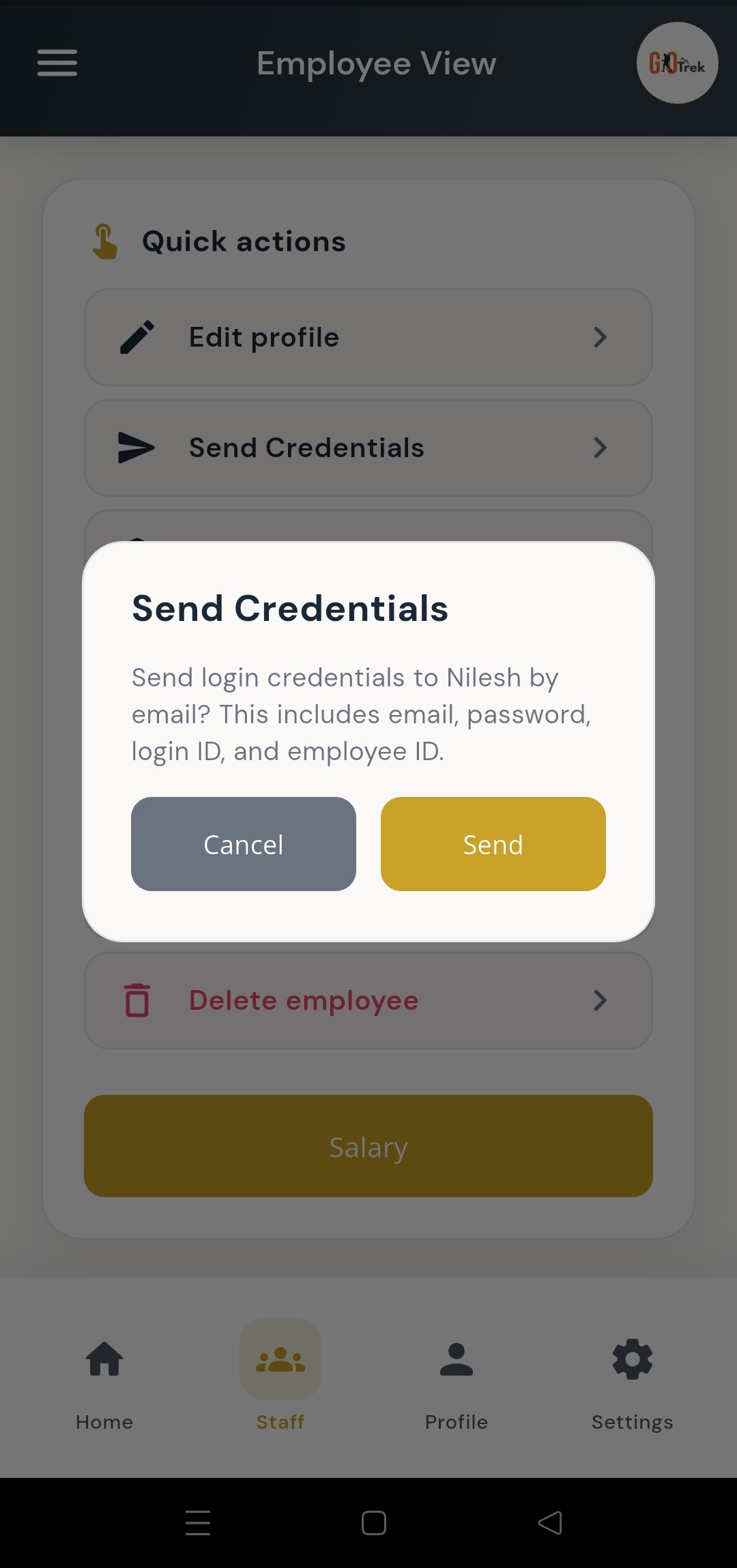
Employee management lets you create staff records, edit details, filter the list, and send login details so employees can open the Employee App.
Go to Staff / Employees. Tap Add Employee and fill step 1 and step 2. Save. To change details later, open the employee and tap Edit. Use filter to search by name or department.
Review punches, calendar view, and fix attendance.
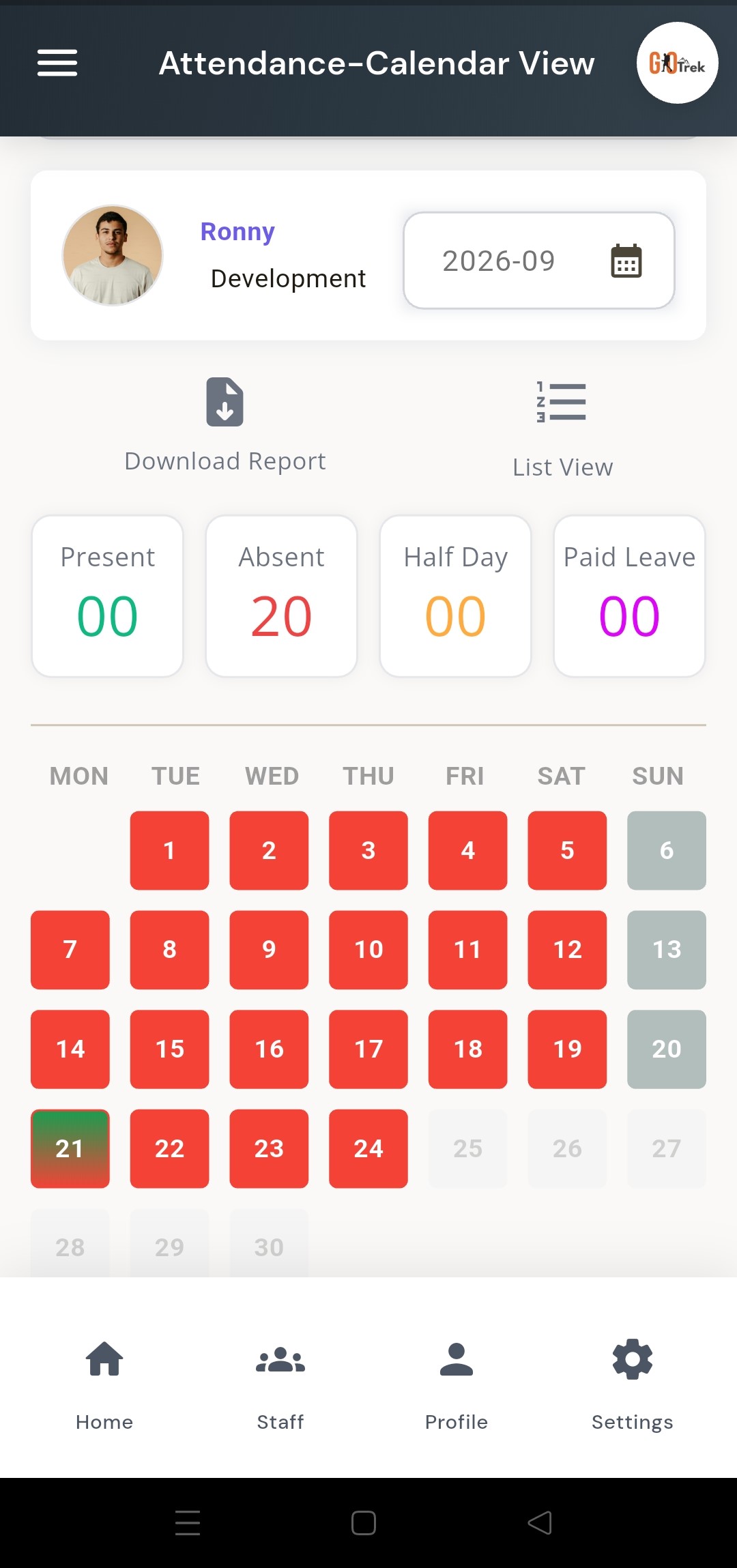
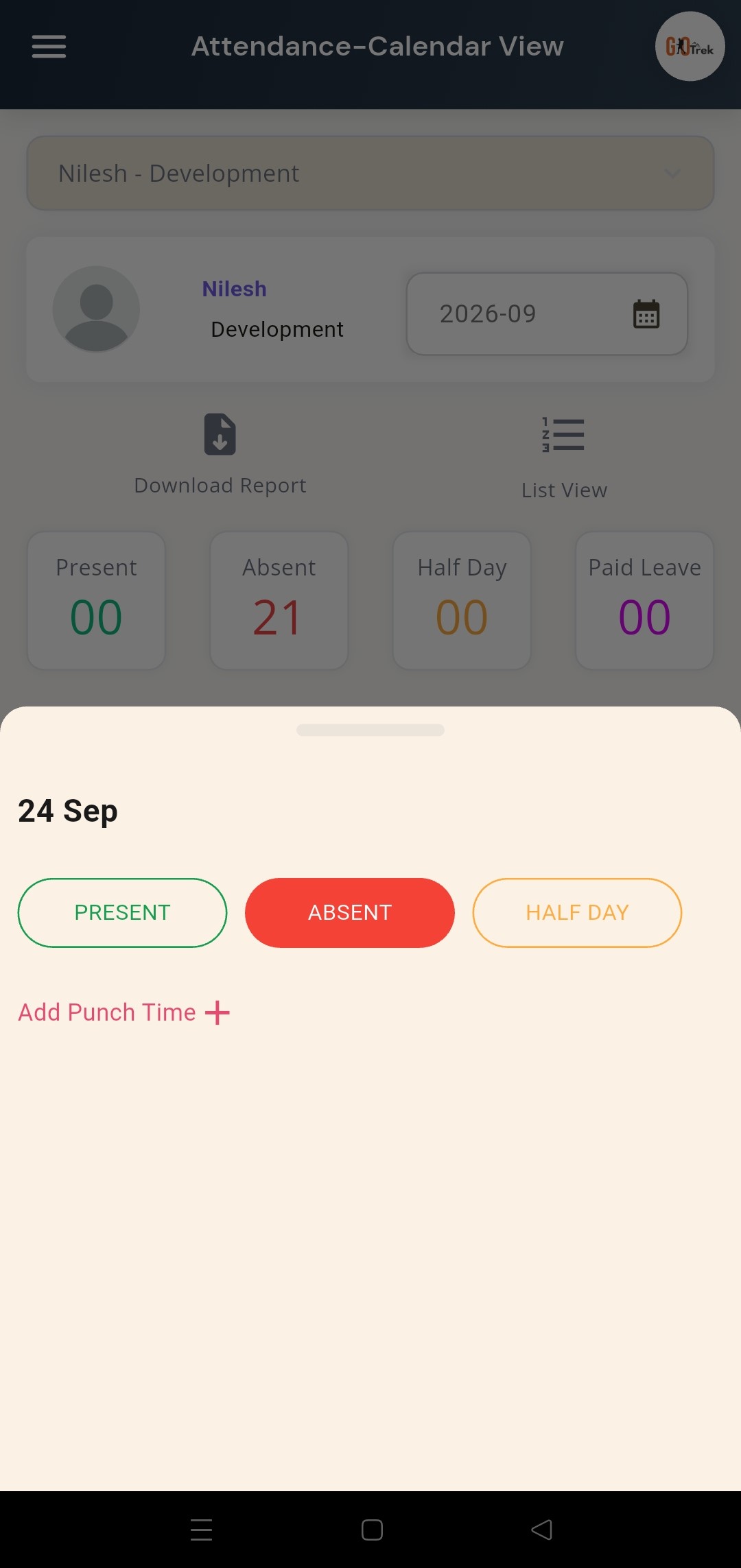
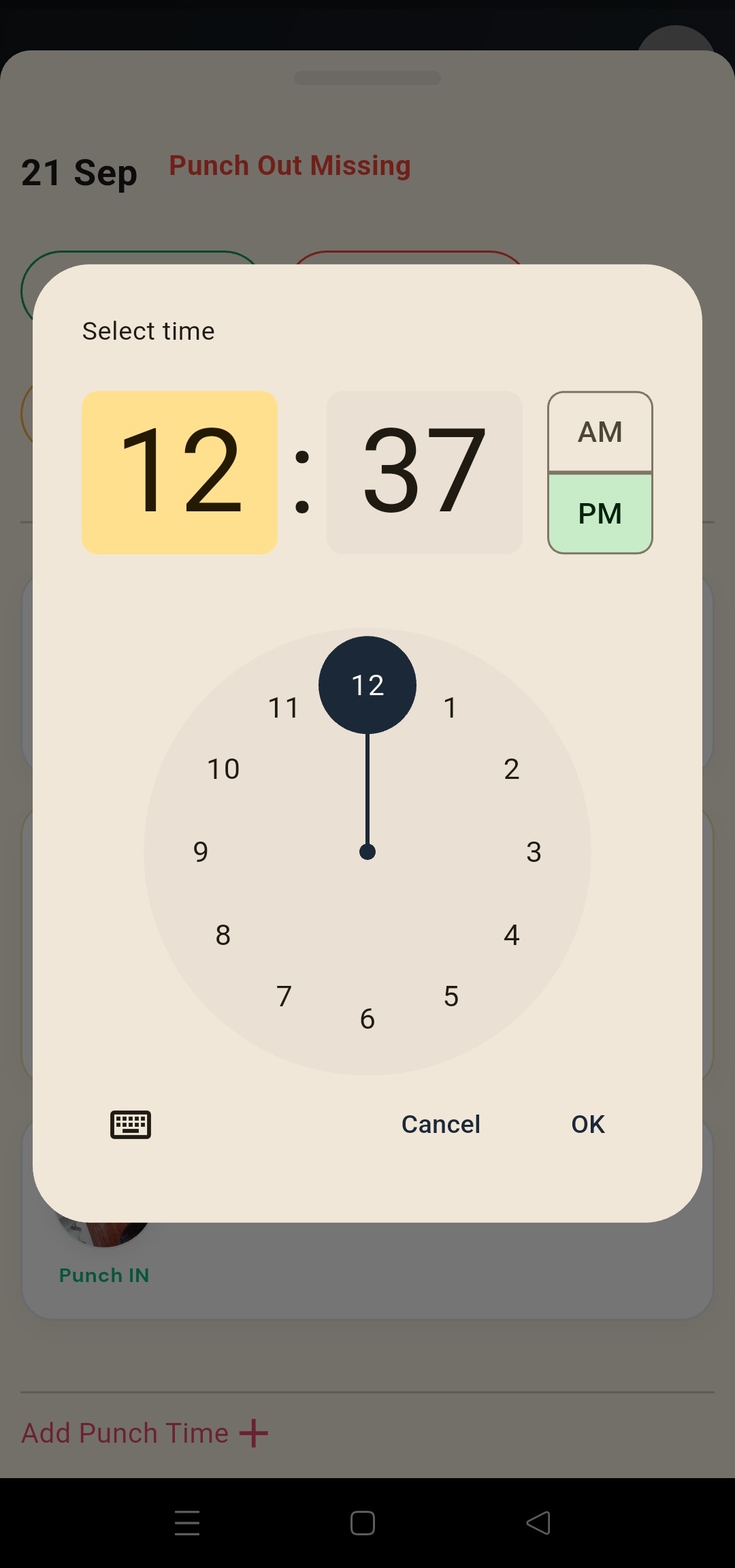
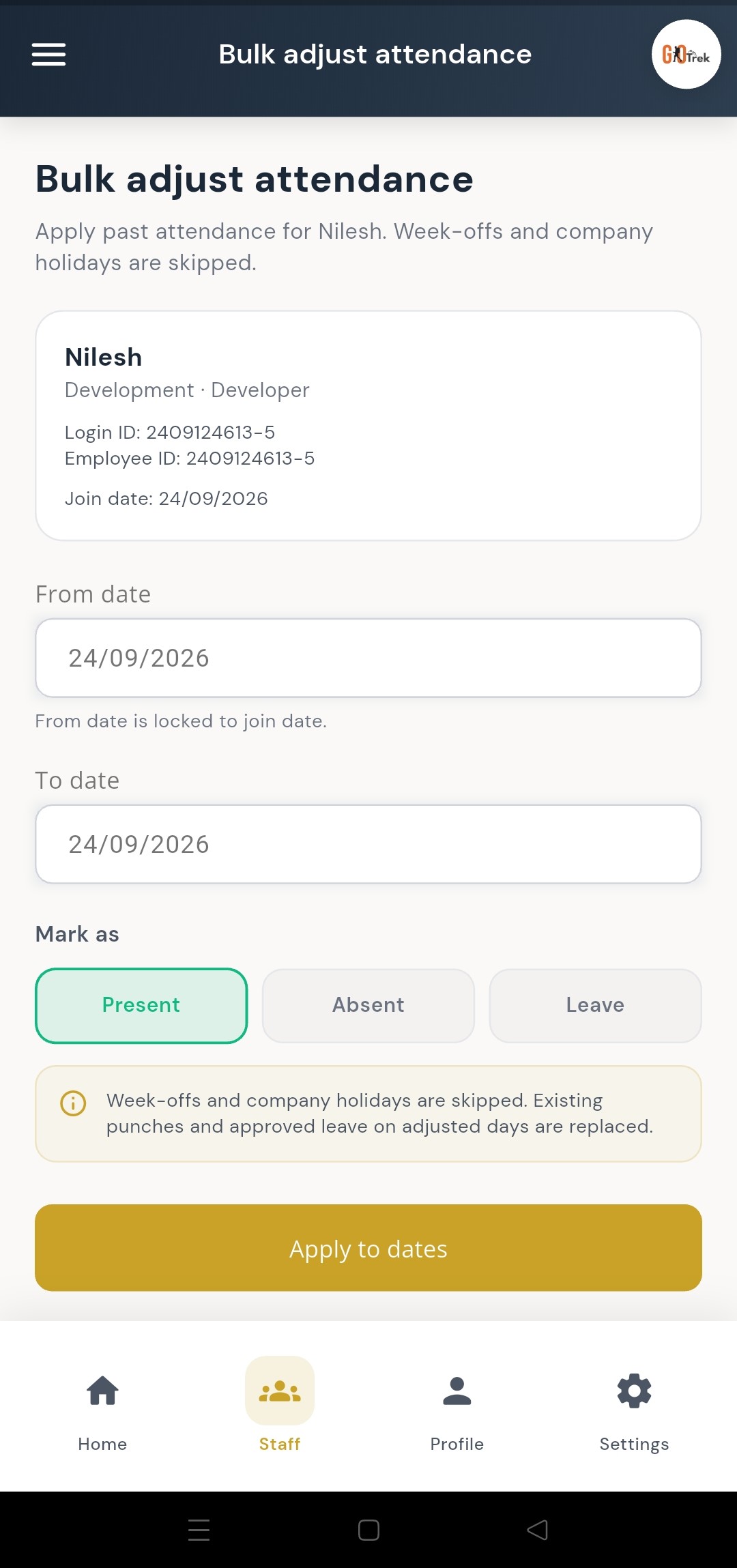
Attendance shows when employees punched in and out. You can open a calendar, check any date, add or edit punch times, and adjust attendance in bulk when needed.
Open Employees, choose a person, then Attendance. Use Calendar View to pick a date. If punch out is missing, add the correct time. For many staff at once, use Bulk Attendance.
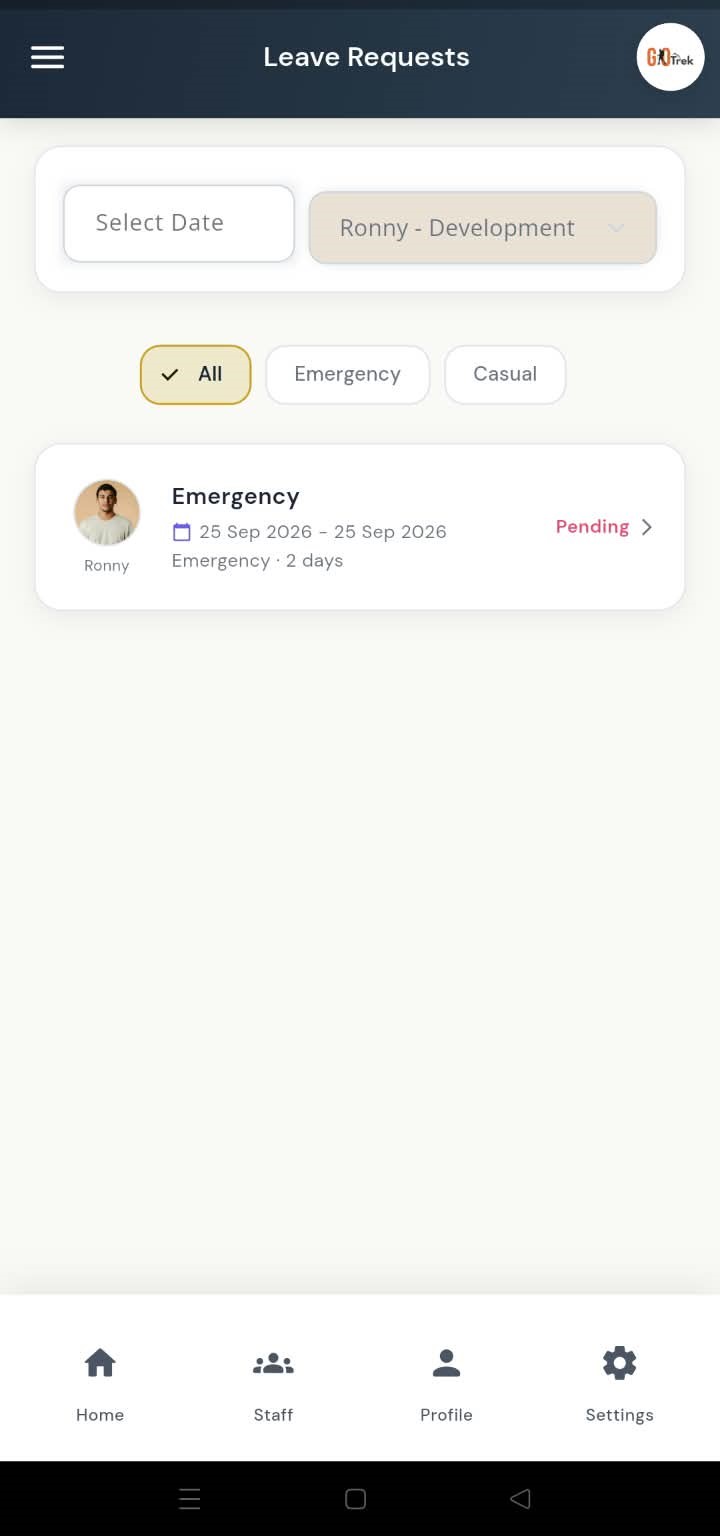
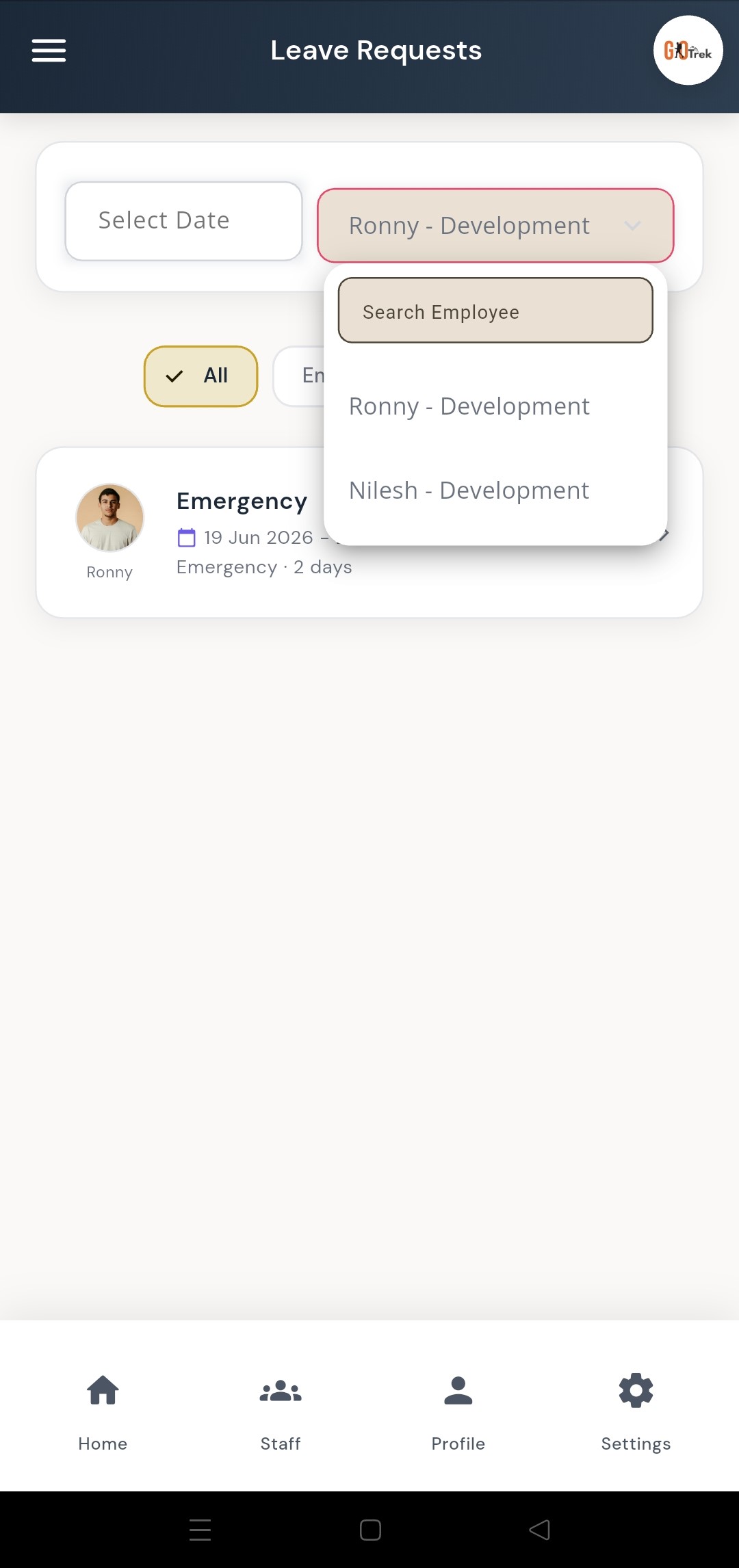
Approve or reject employee leave from your phone.
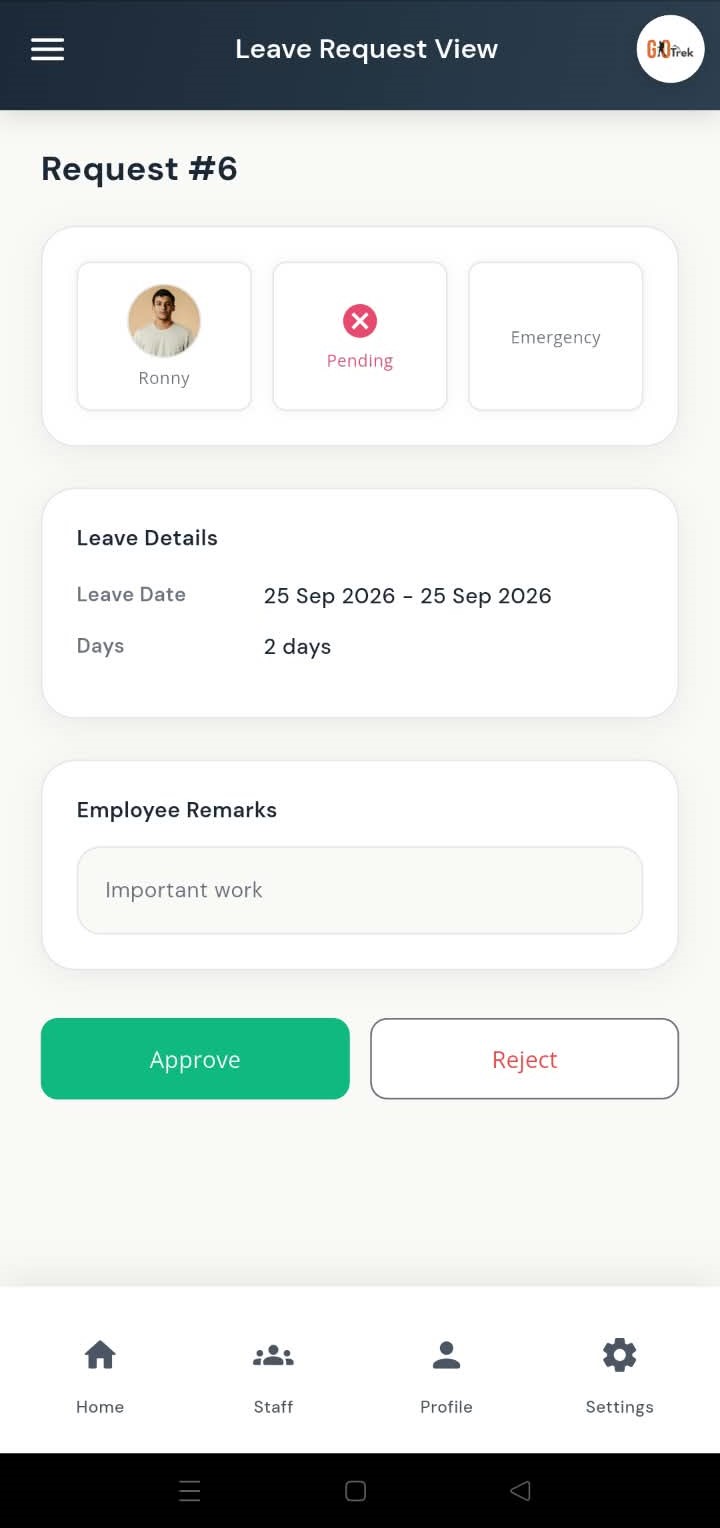
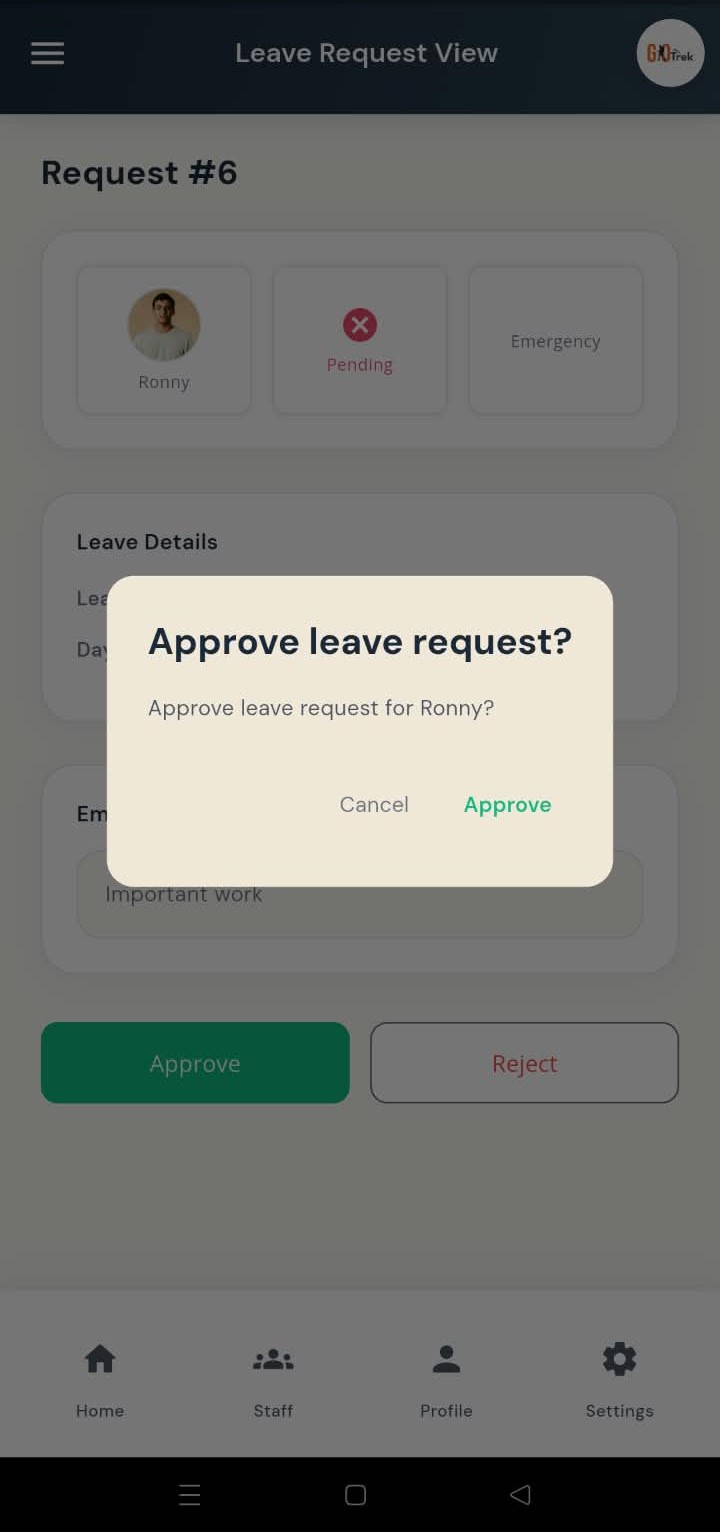
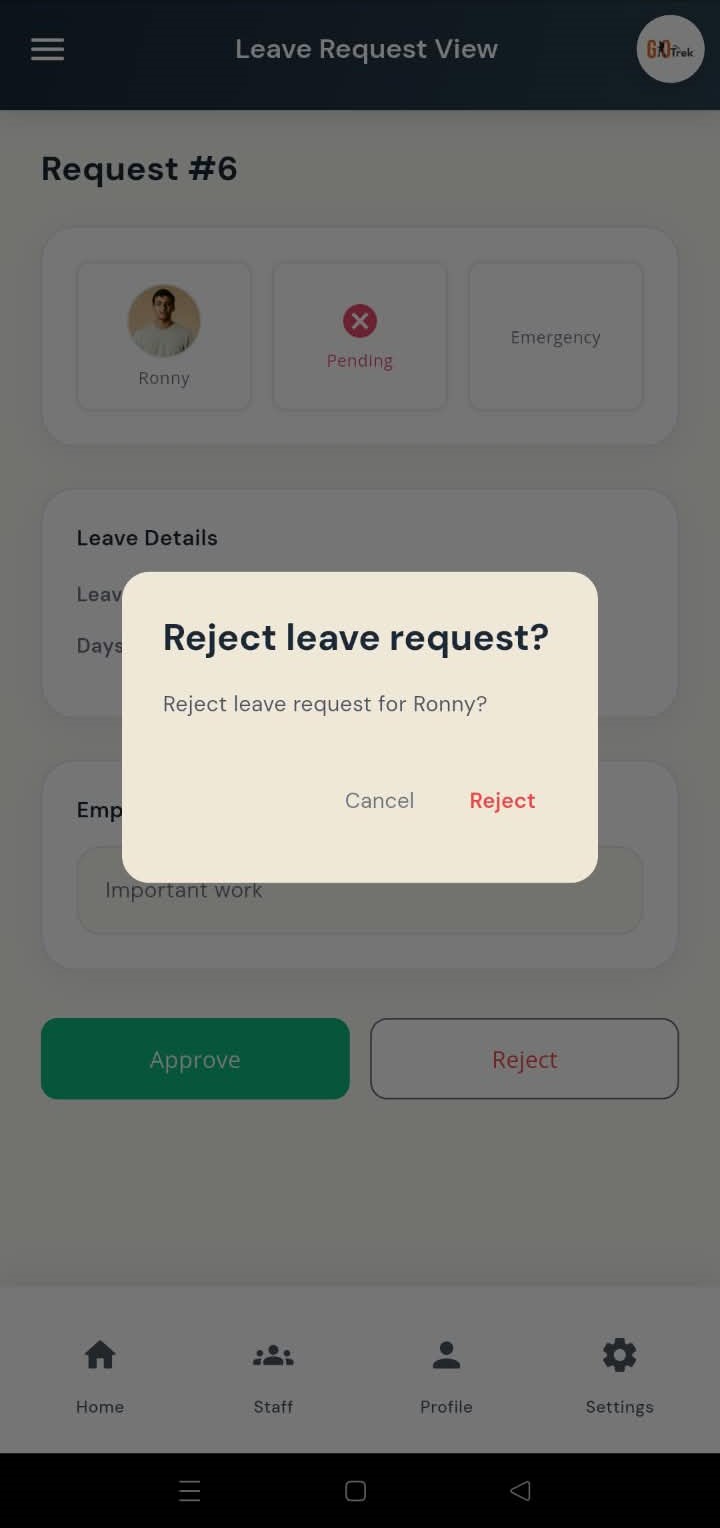
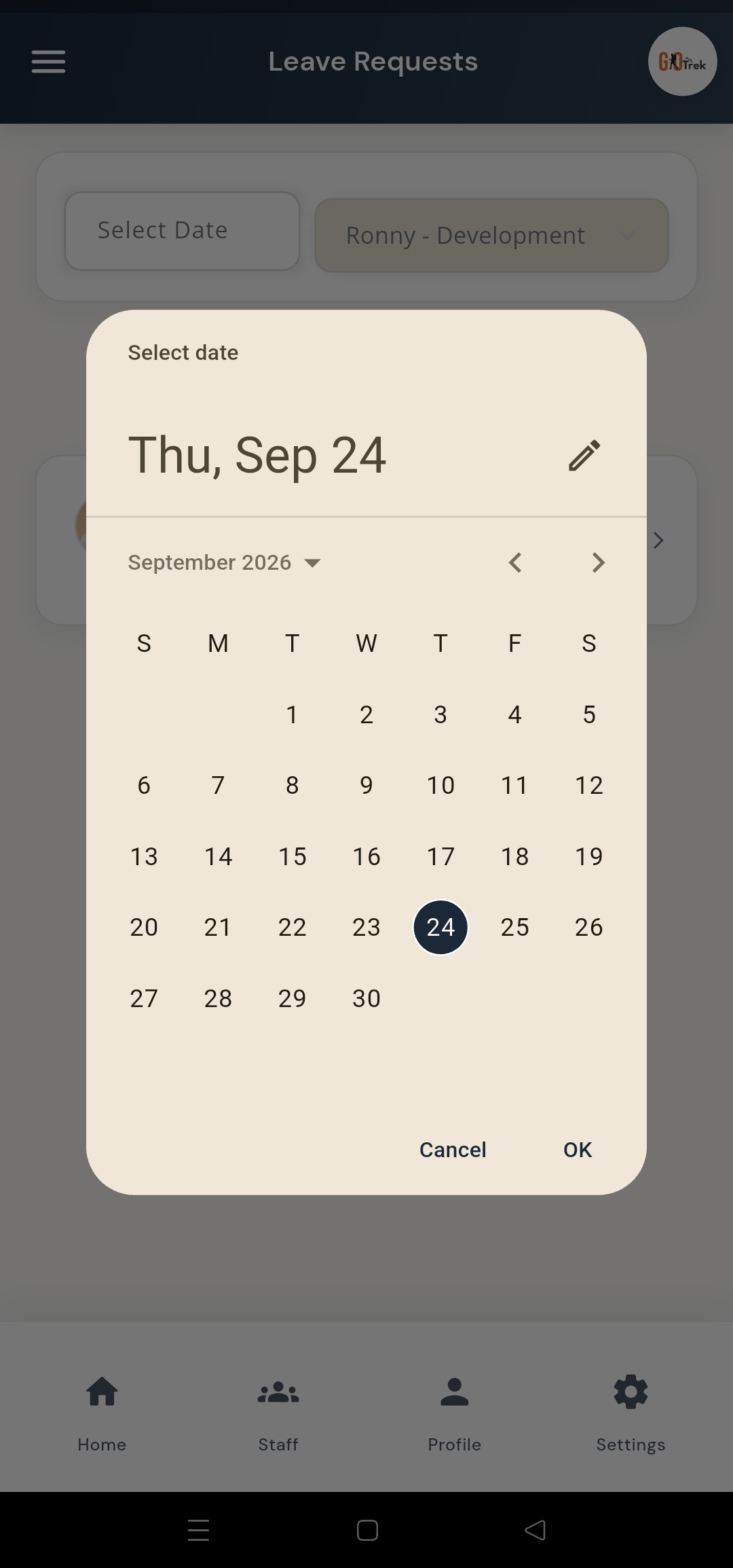
When an employee applies for leave in the Employee App, you see the request here. You can approve, reject, filter by date or employee, and check due or pending leaves.
Open Leave Requests from Home or menu. Tap a request to review details. Choose Approve or Reject. Use filters when the list is long.
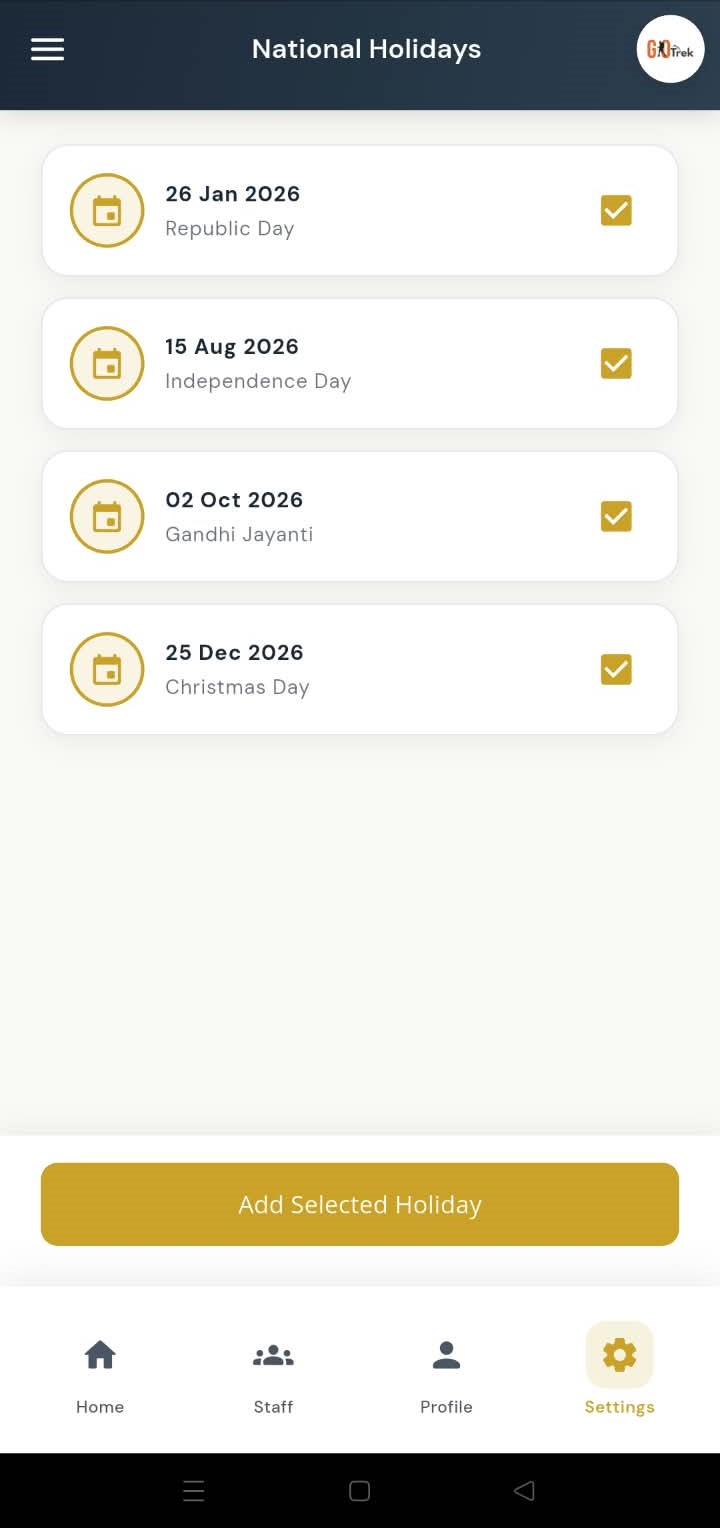
Set company holidays and national holidays.
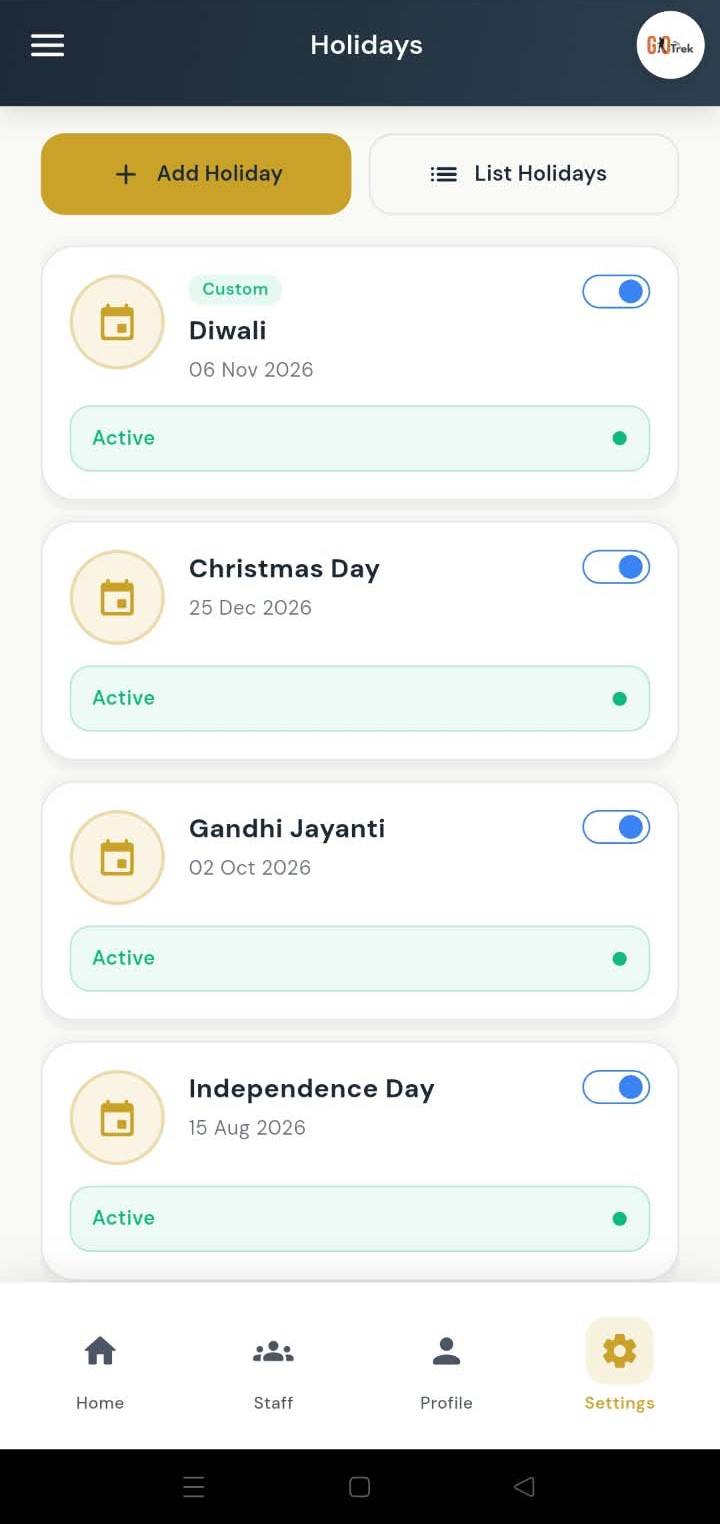
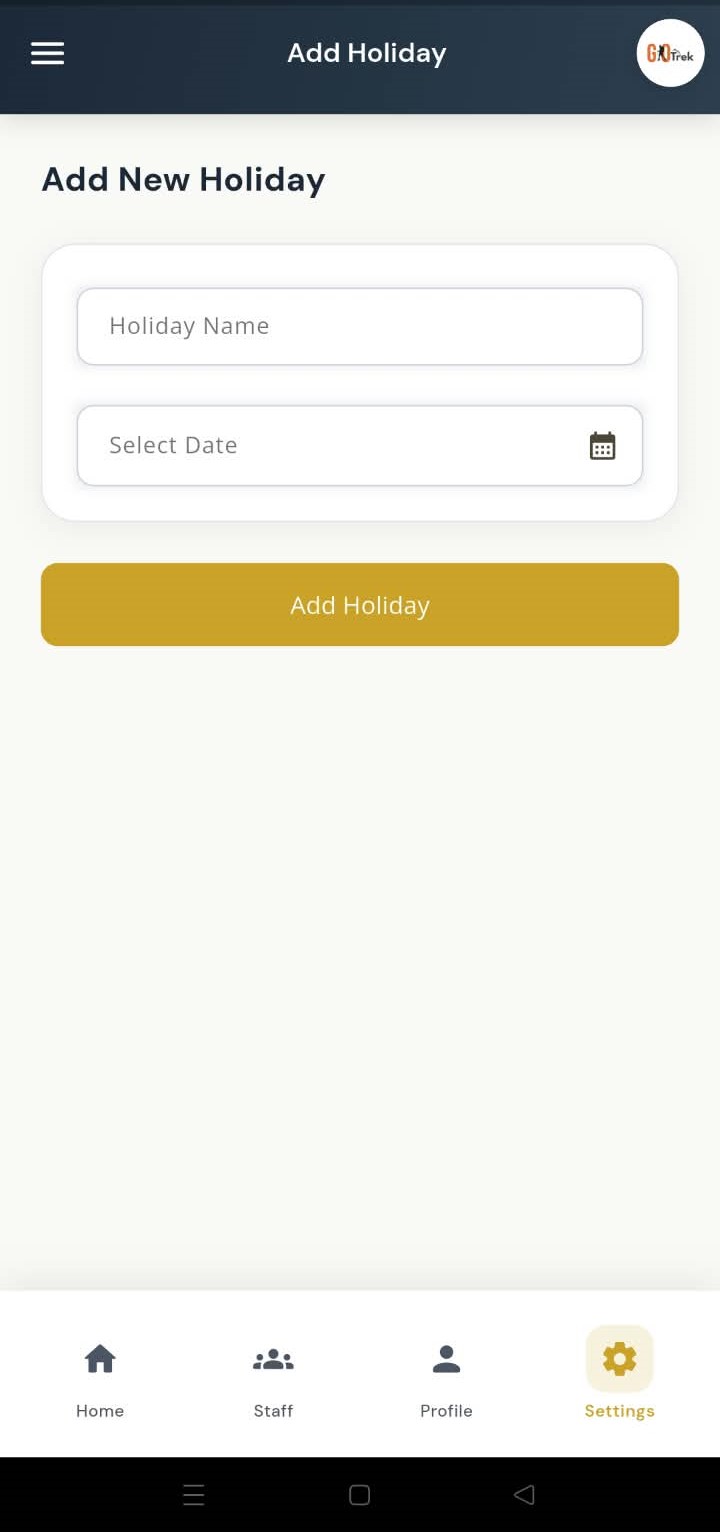
Holidays mark non-working days for attendance. You can add custom holidays (like Diwali) and also select national holidays that repeat every year.
Open Settings → Holidays (or Holidays from menu). Tap Add Holiday for a custom date, or open National Holidays to select yearly public holidays.
Create and manage company departments.
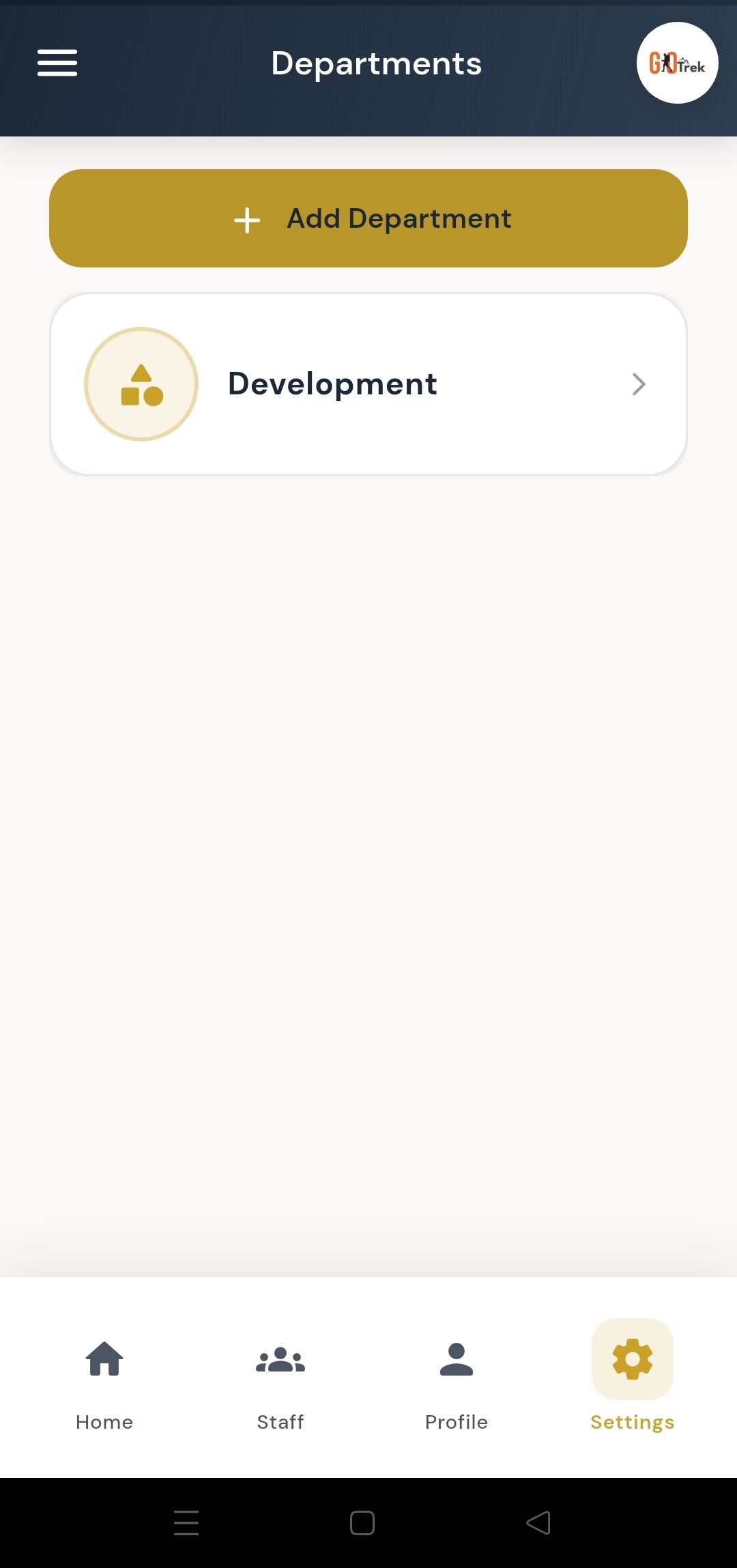
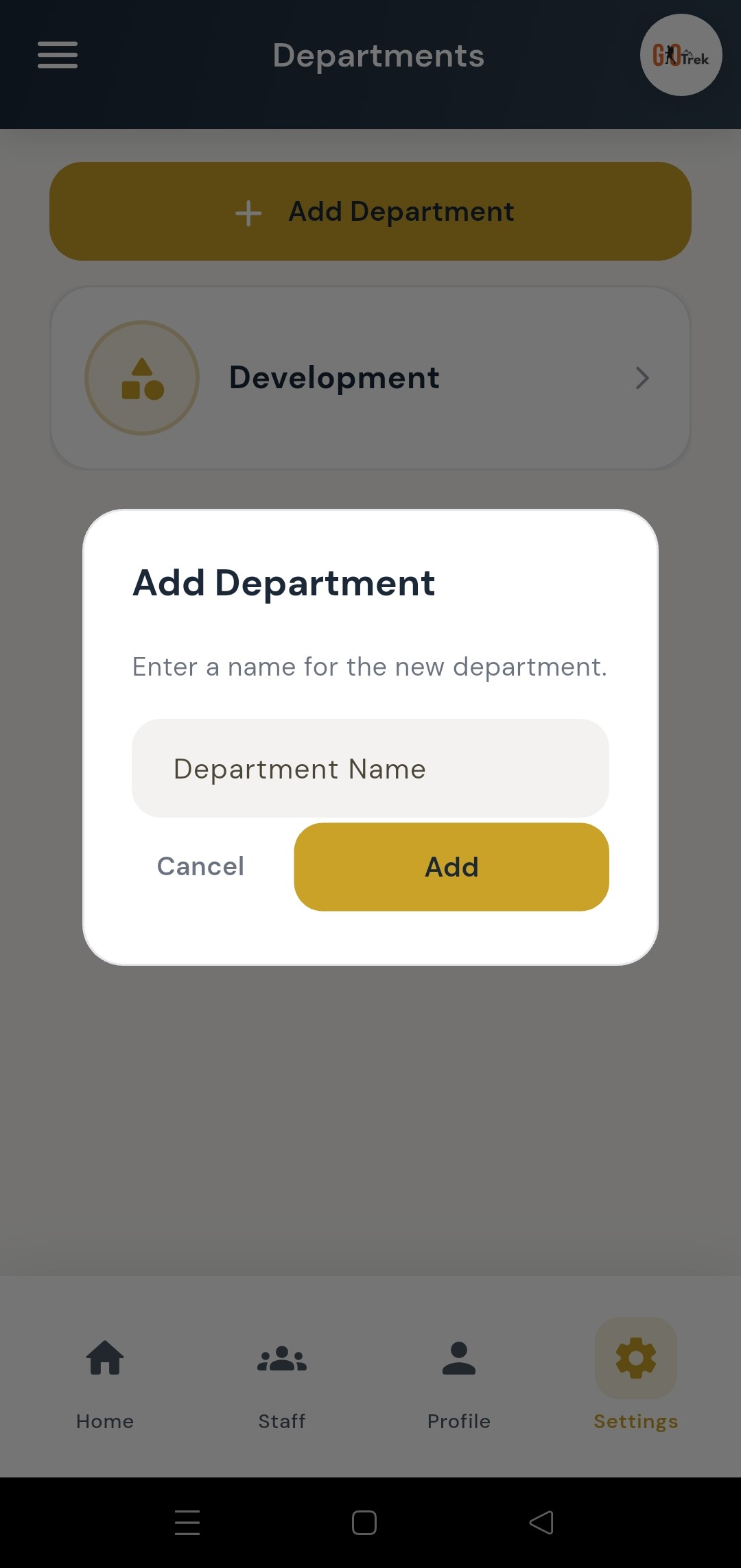
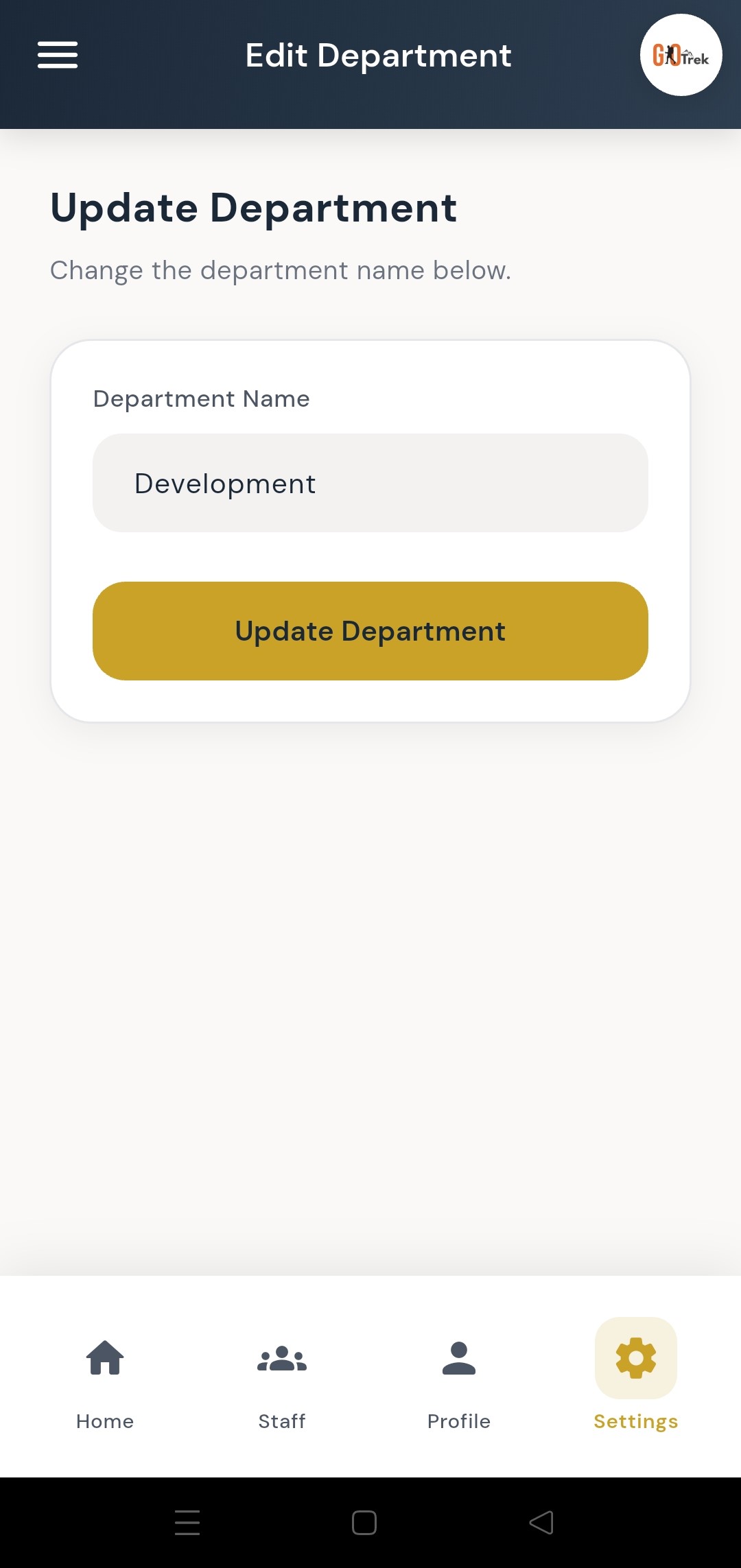
Departments organize employees into teams such as Sales, HR, or Development. Every employee can be linked to a department.
Open Departments from settings or menu. Tap Add, enter the name, and save. Use Edit to rename later.
Define job titles for your staff.
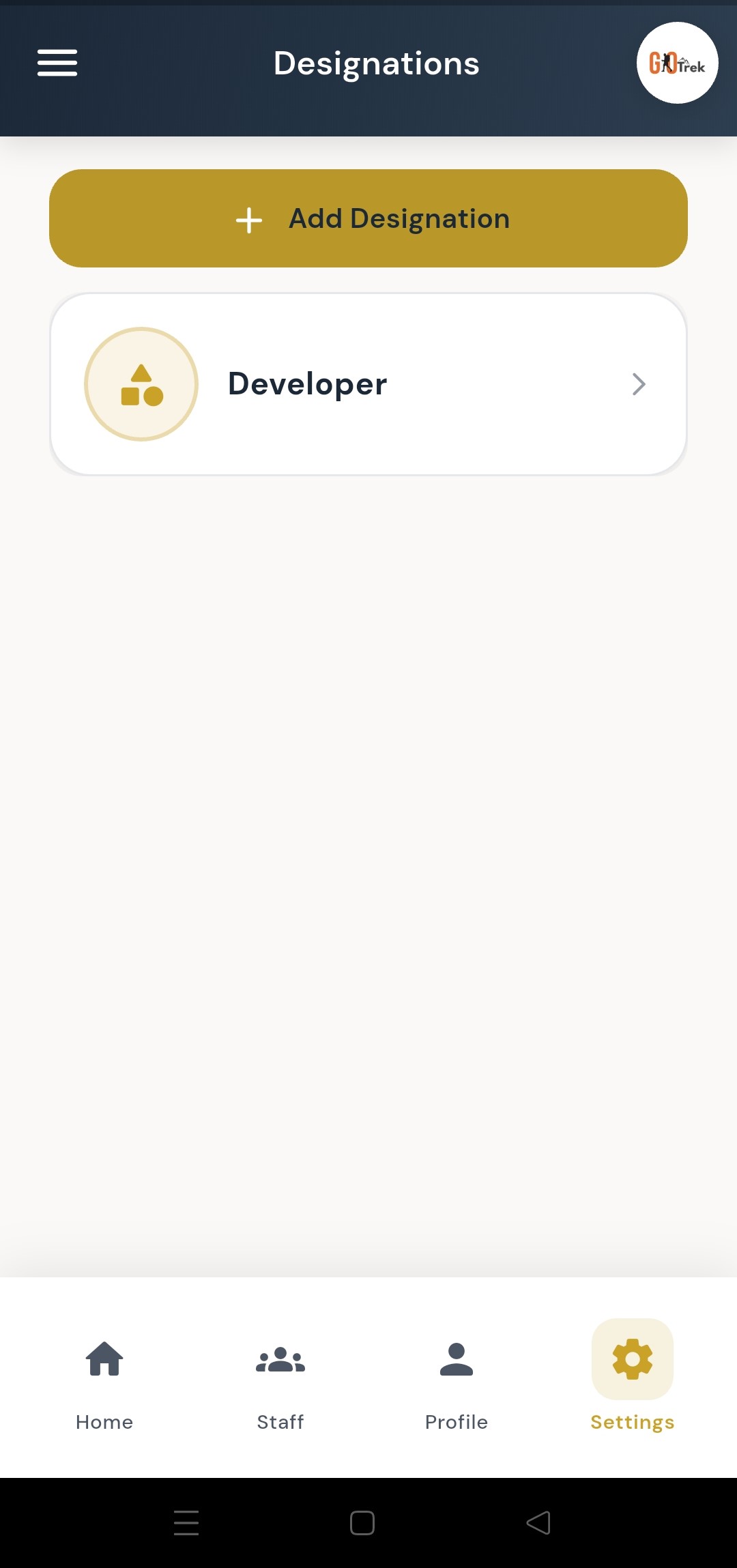
Designations are job titles like Manager, Executive, or Developer. They help you classify roles when adding employees.
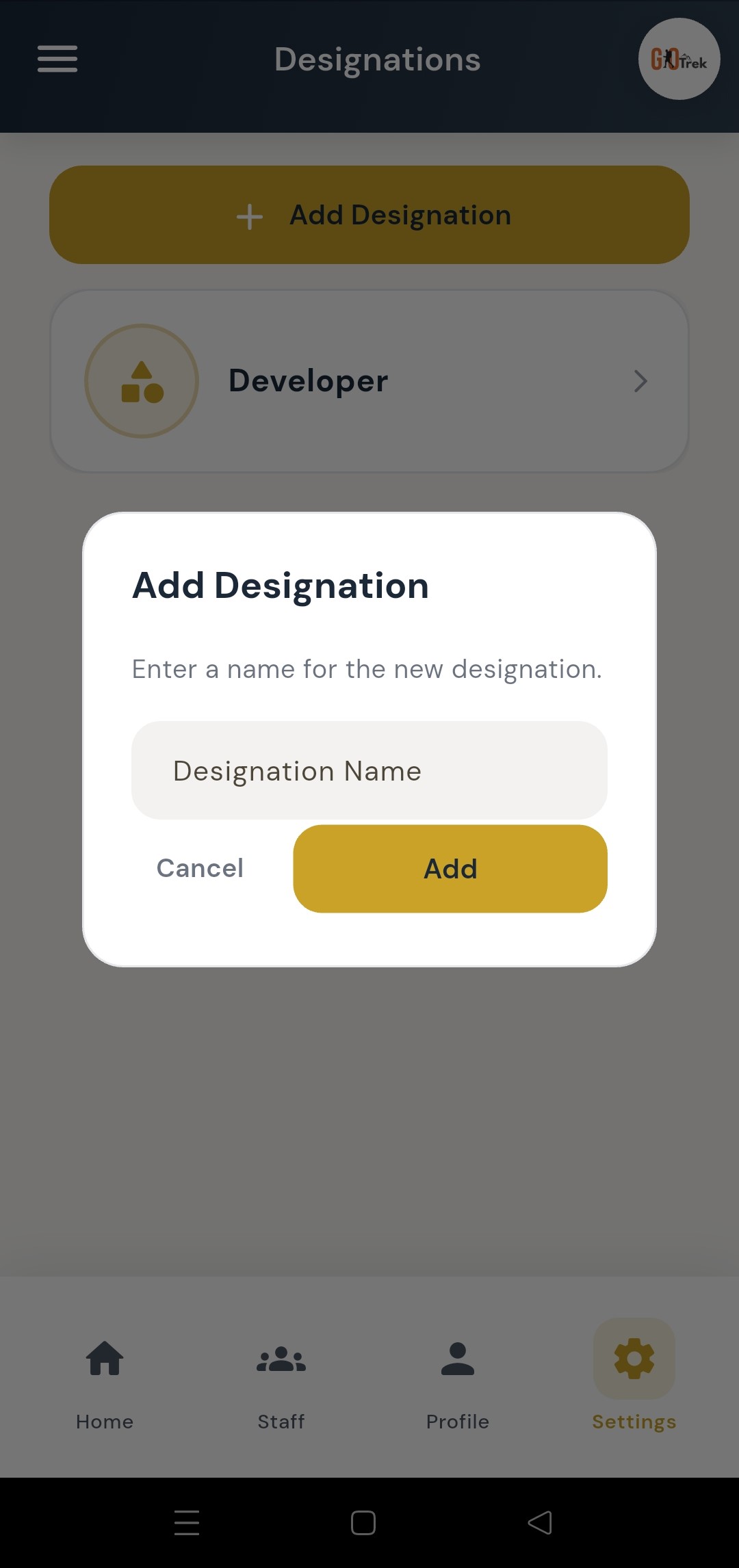
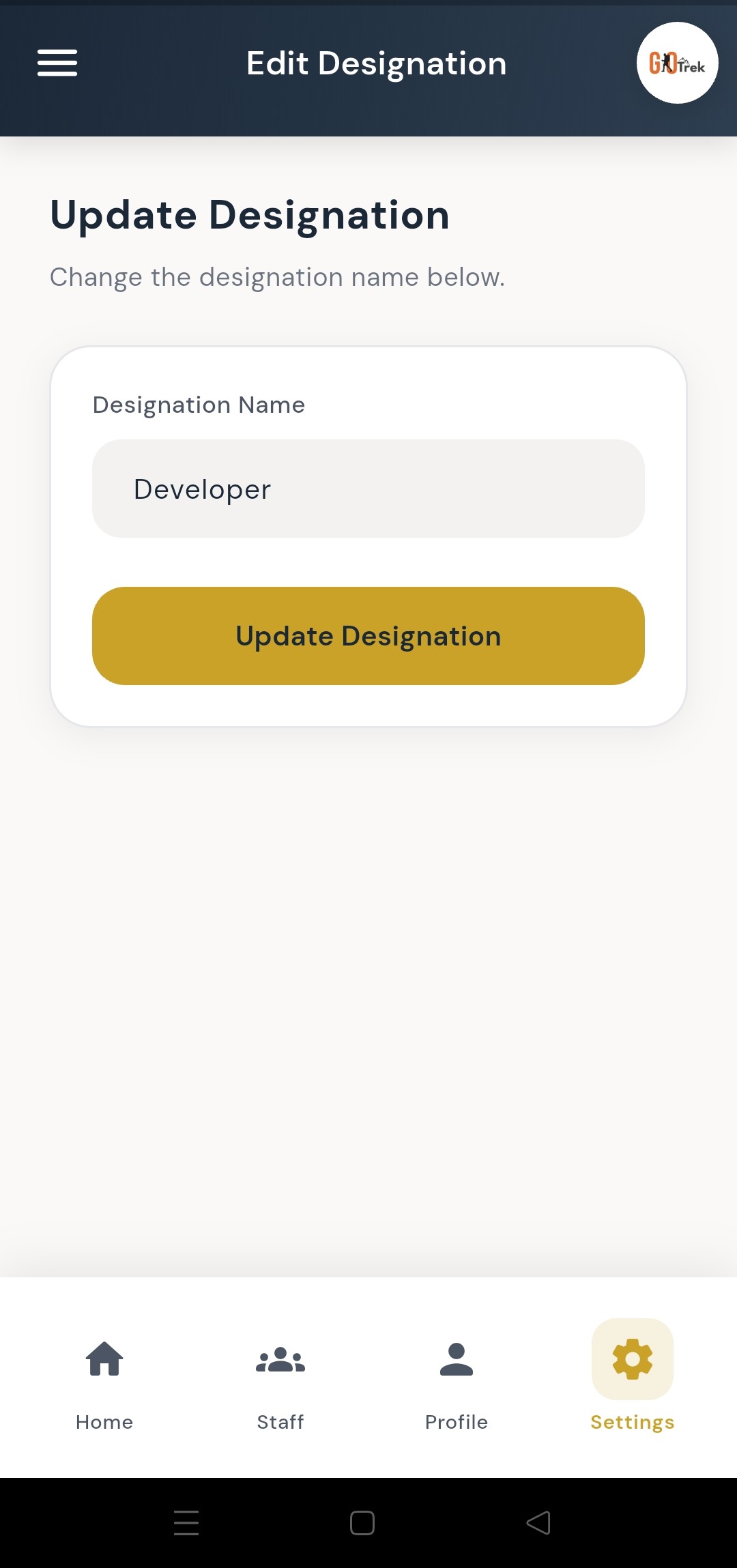
Open Designations. Tap Add, type the title, and save. Assign a designation when you create or edit an employee.
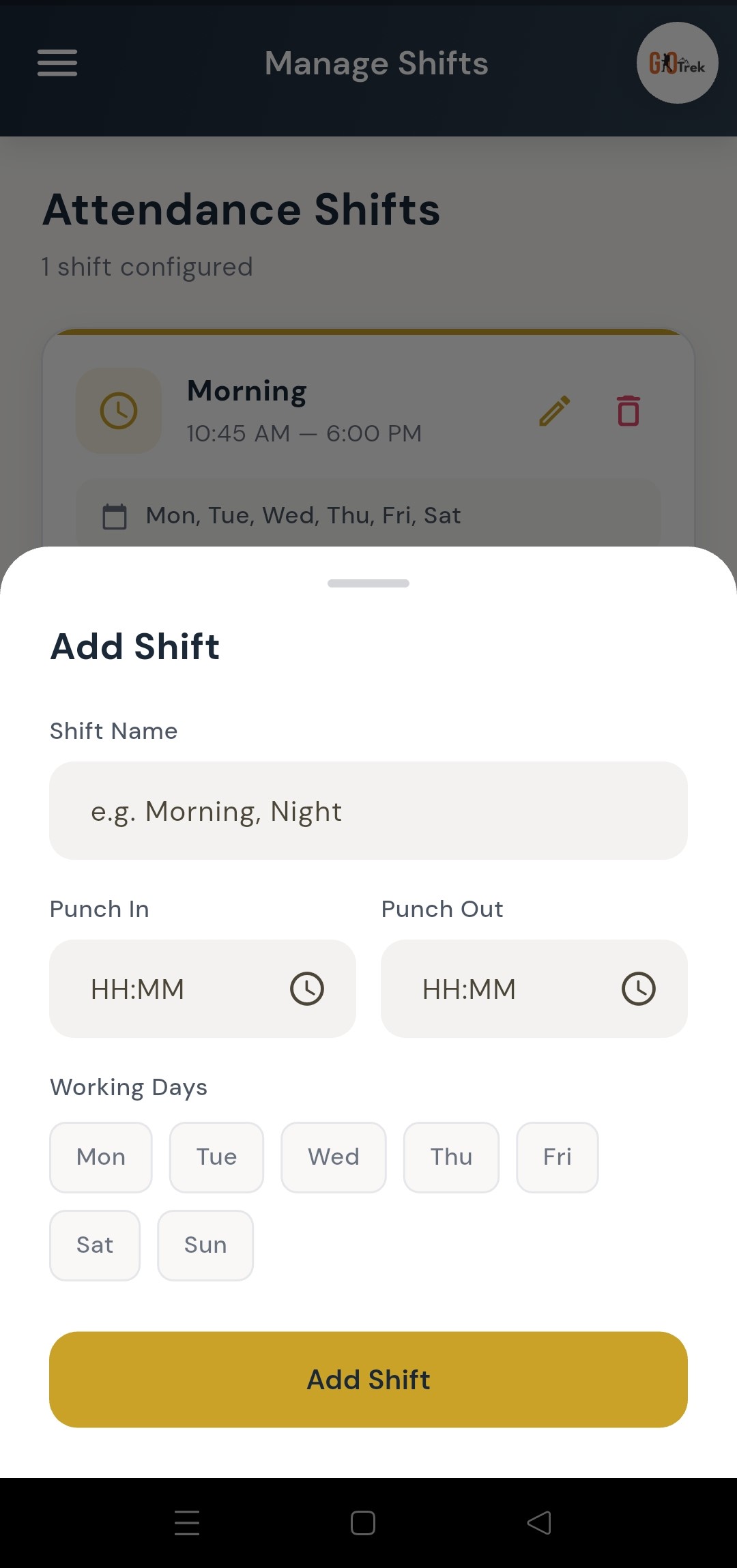
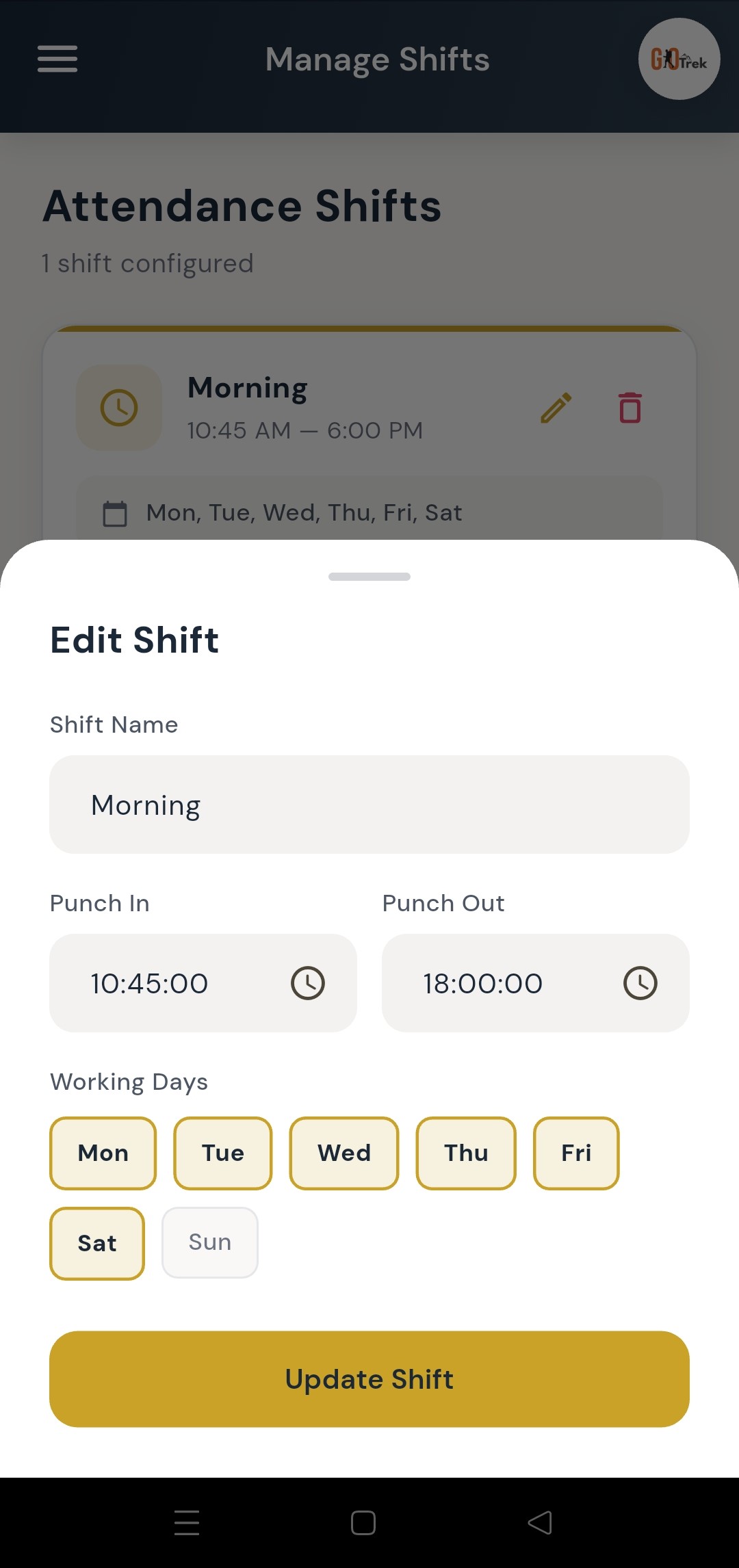
Set working hours for your team.
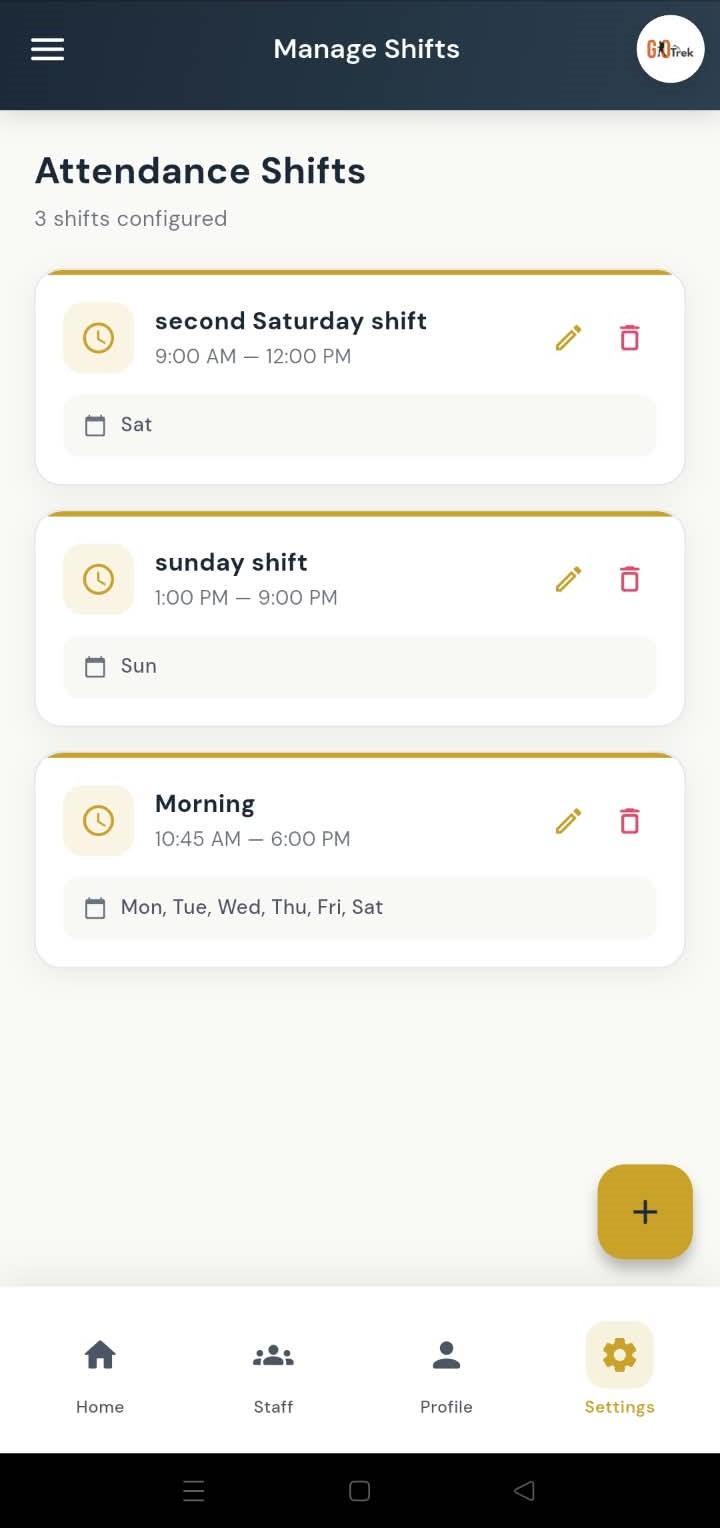
Shifts define punch-in and punch-out windows (for example 9:00 AM to 6:00 PM). Attendance rules can use these shift times.
Open Shifts. Tap Add Shift, enter name and timings, then save. Edit anytime if office hours change.
Track office spending and categories.
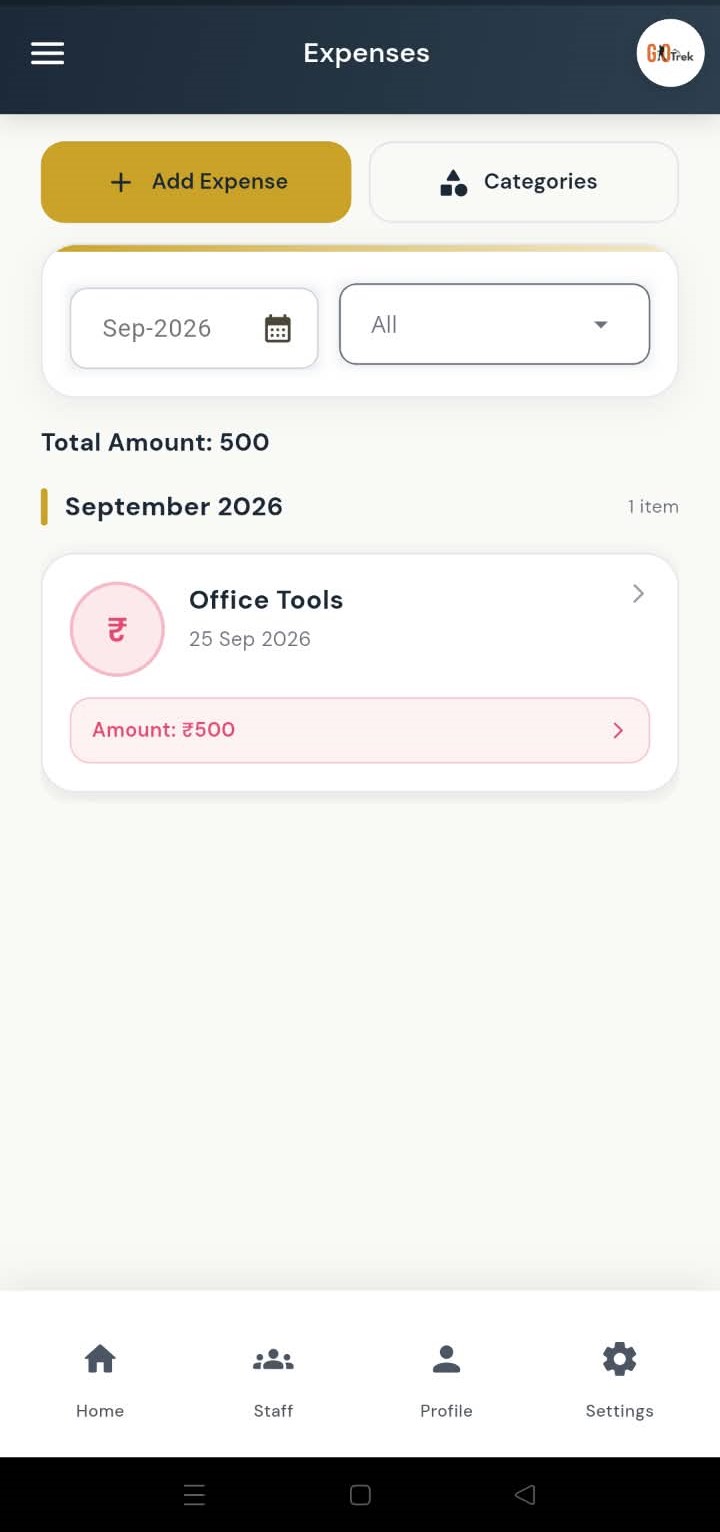
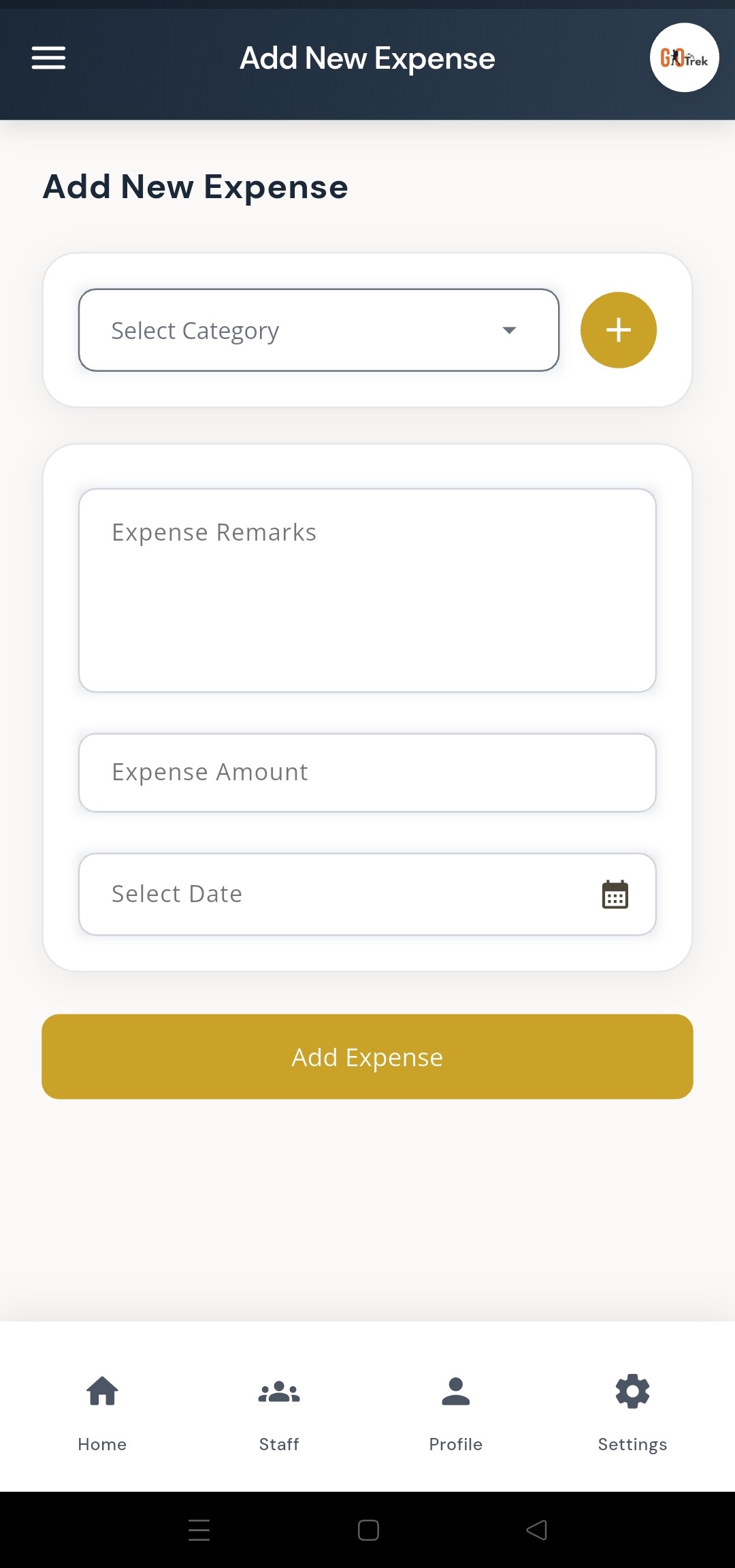
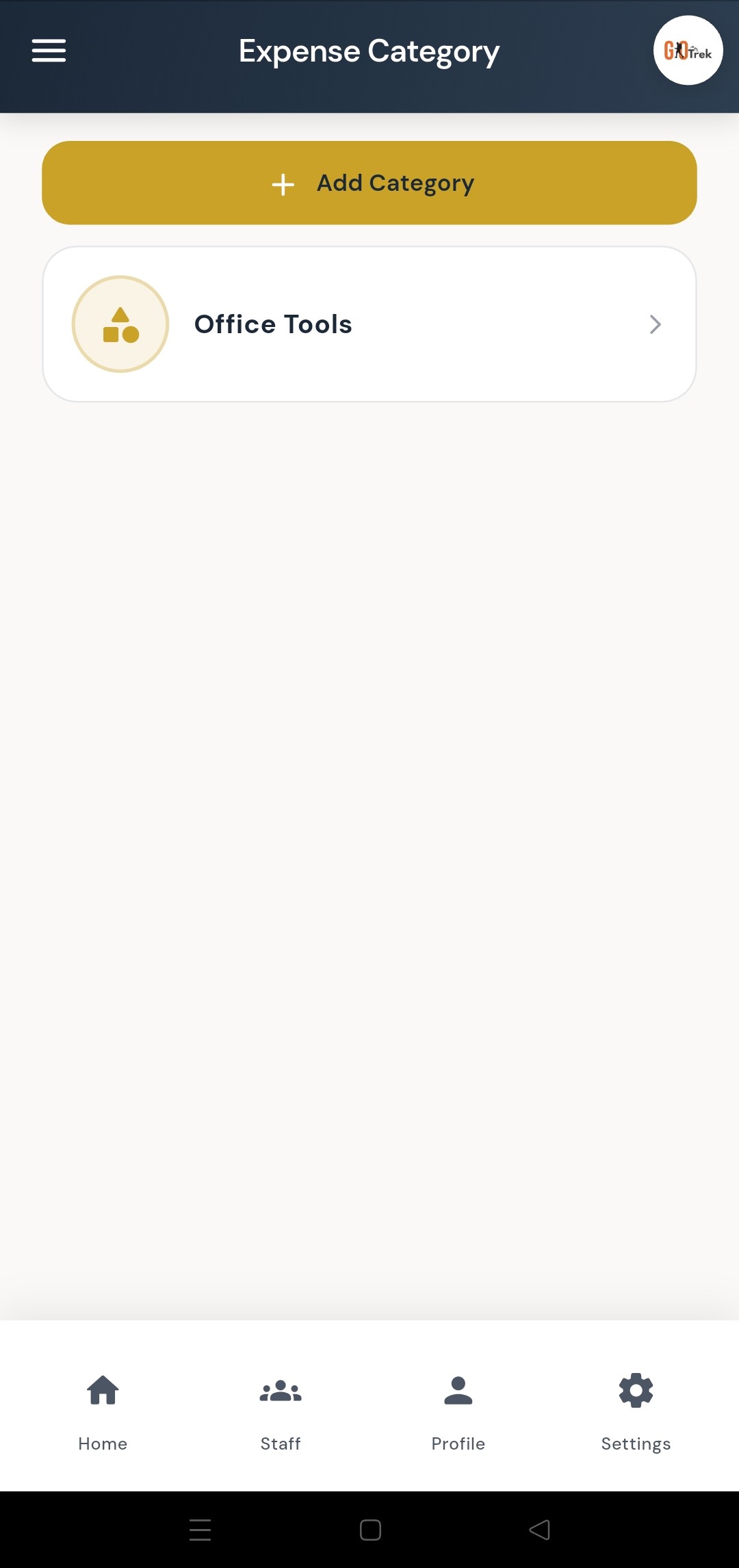
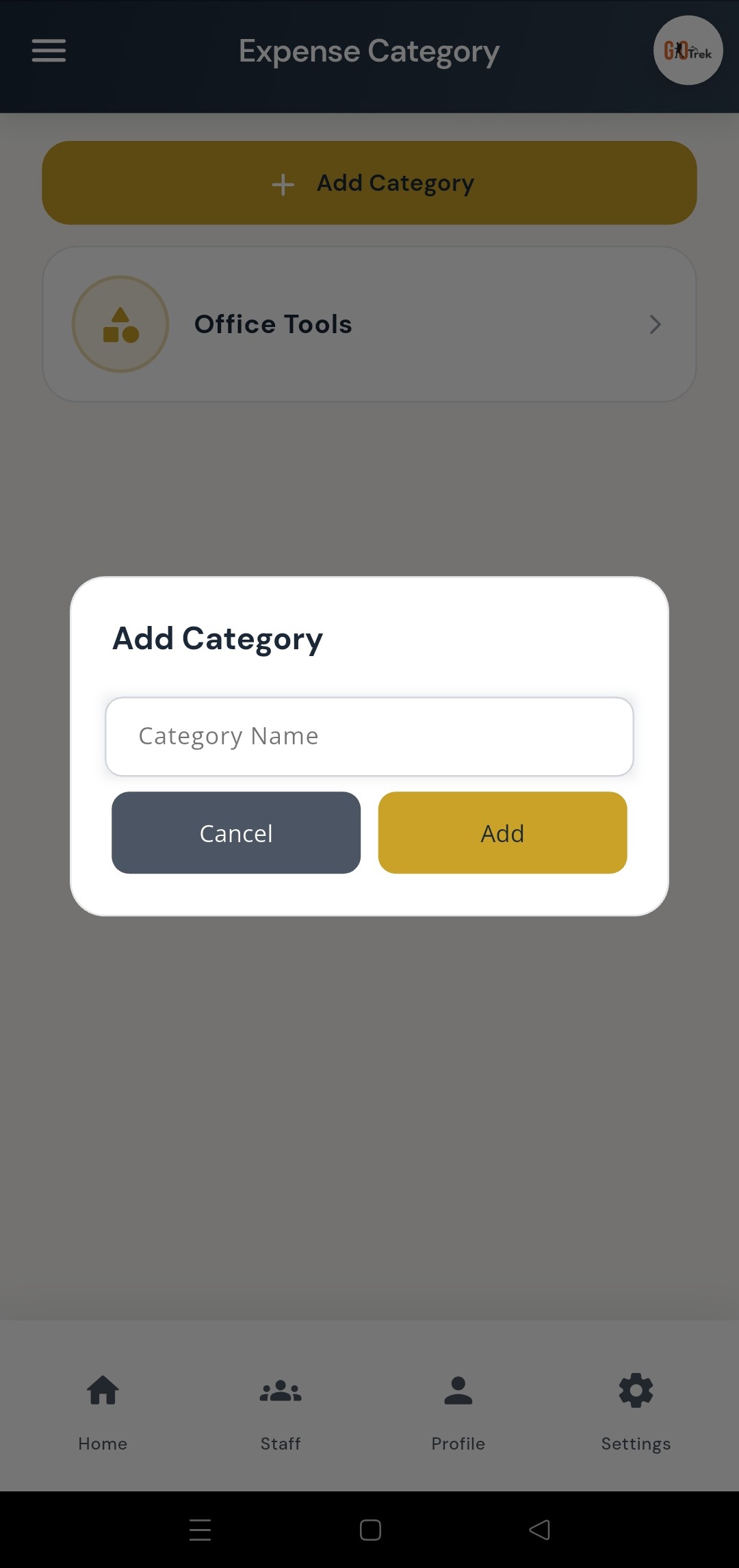
Expenses help you record office costs. You can create expense categories, add expense entries, and update them later.
Open Office Expenses. First create categories if needed. Then add expenses under the right category. Use Manage to edit older entries.
Share updates with your whole team.
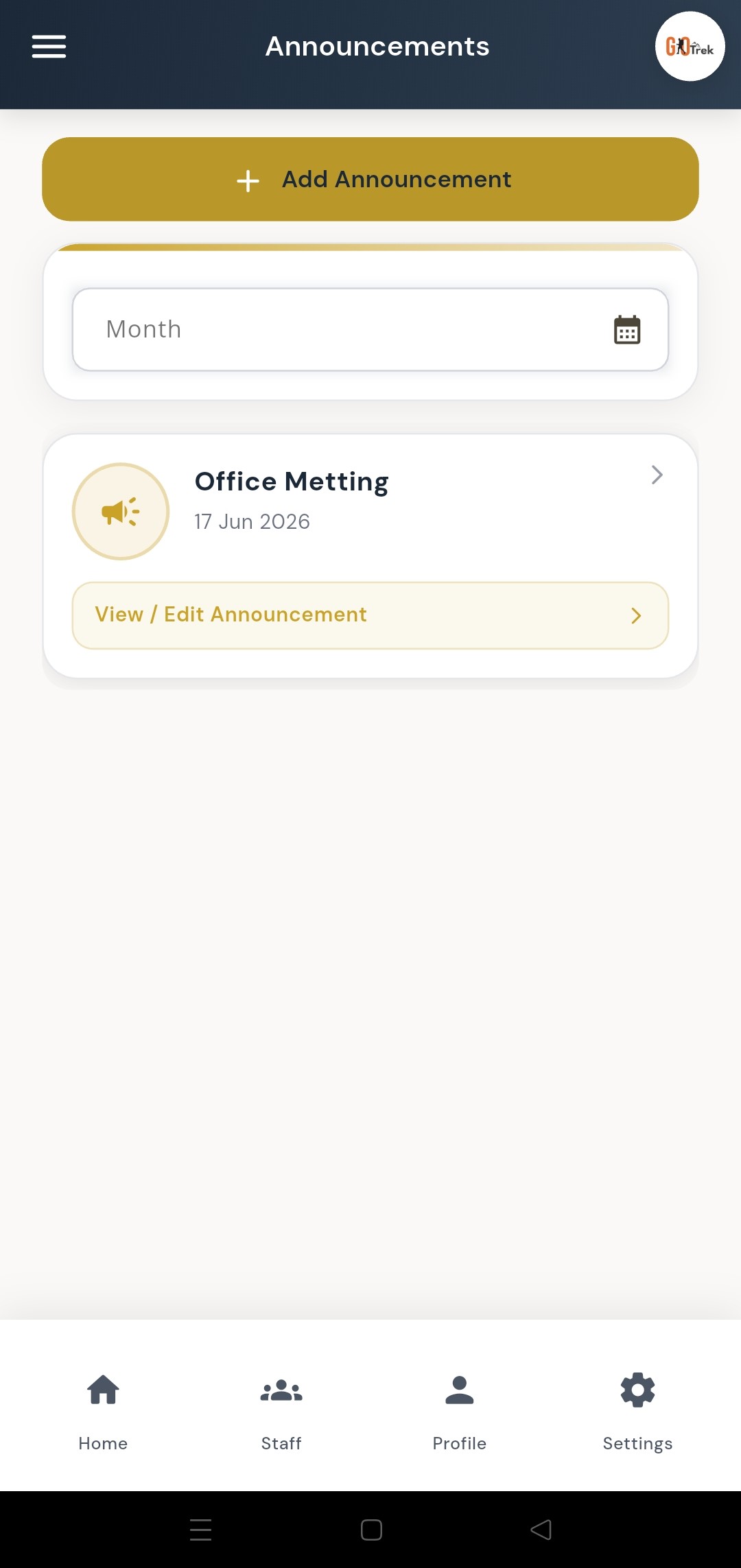
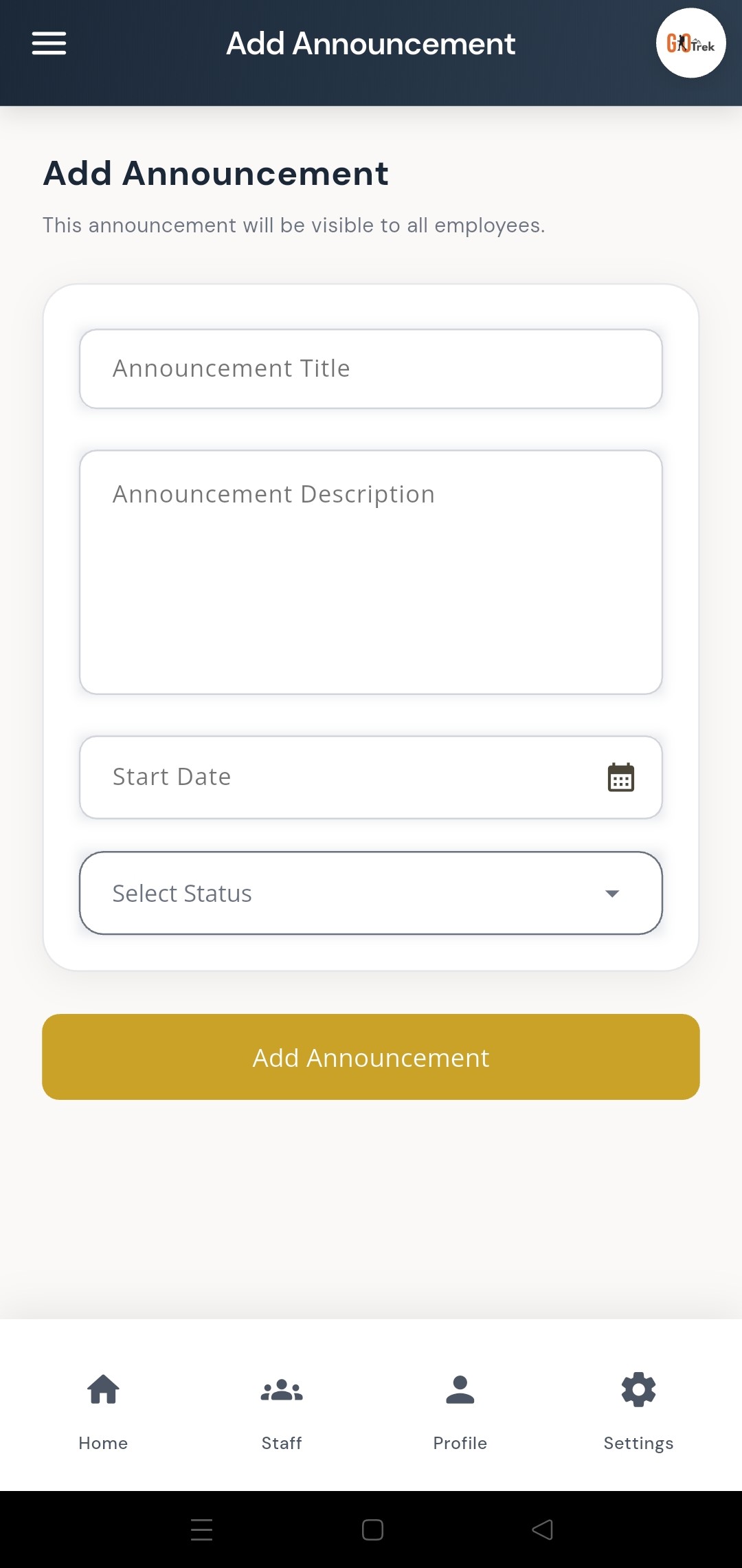
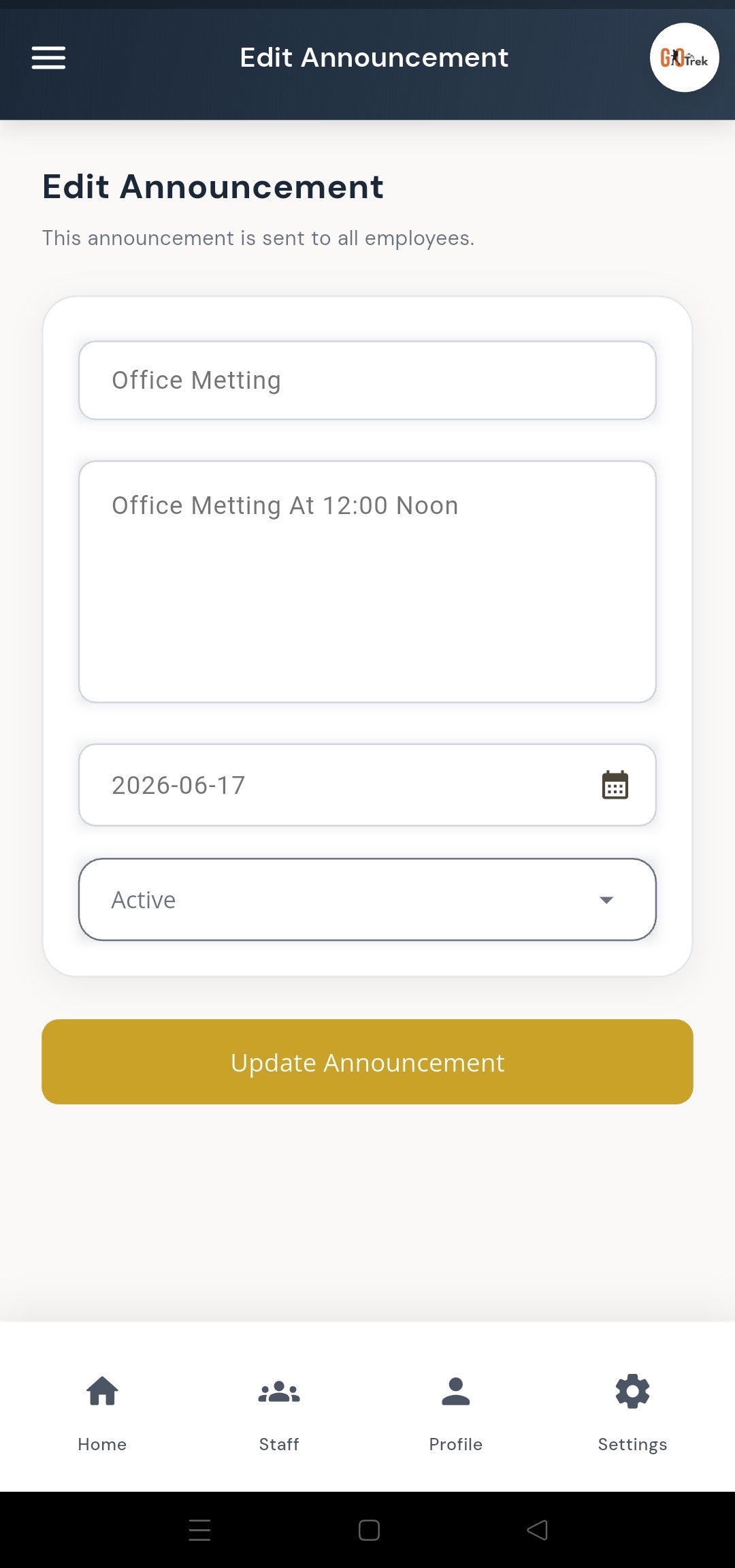
Announcements let you send messages to employees — holidays notice, policy updates, or meeting reminders.
Open Announcements. Tap Add, write a clear message, and save. Employees can see it in their app.
Control how employees are allowed to punch.
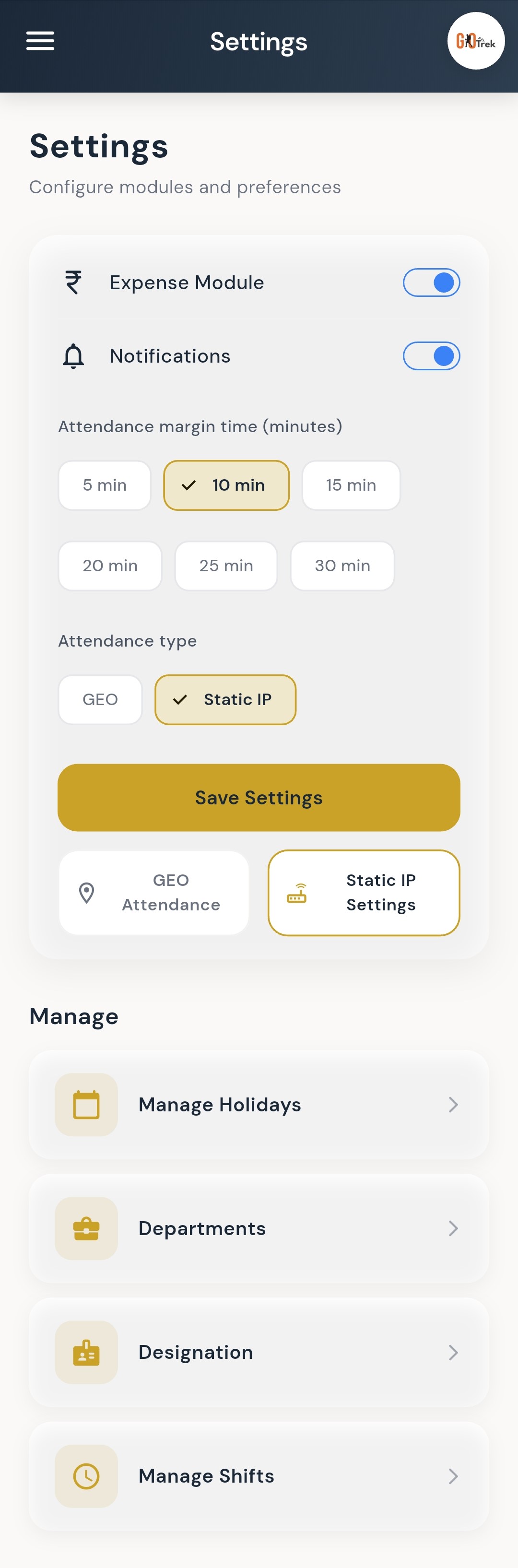
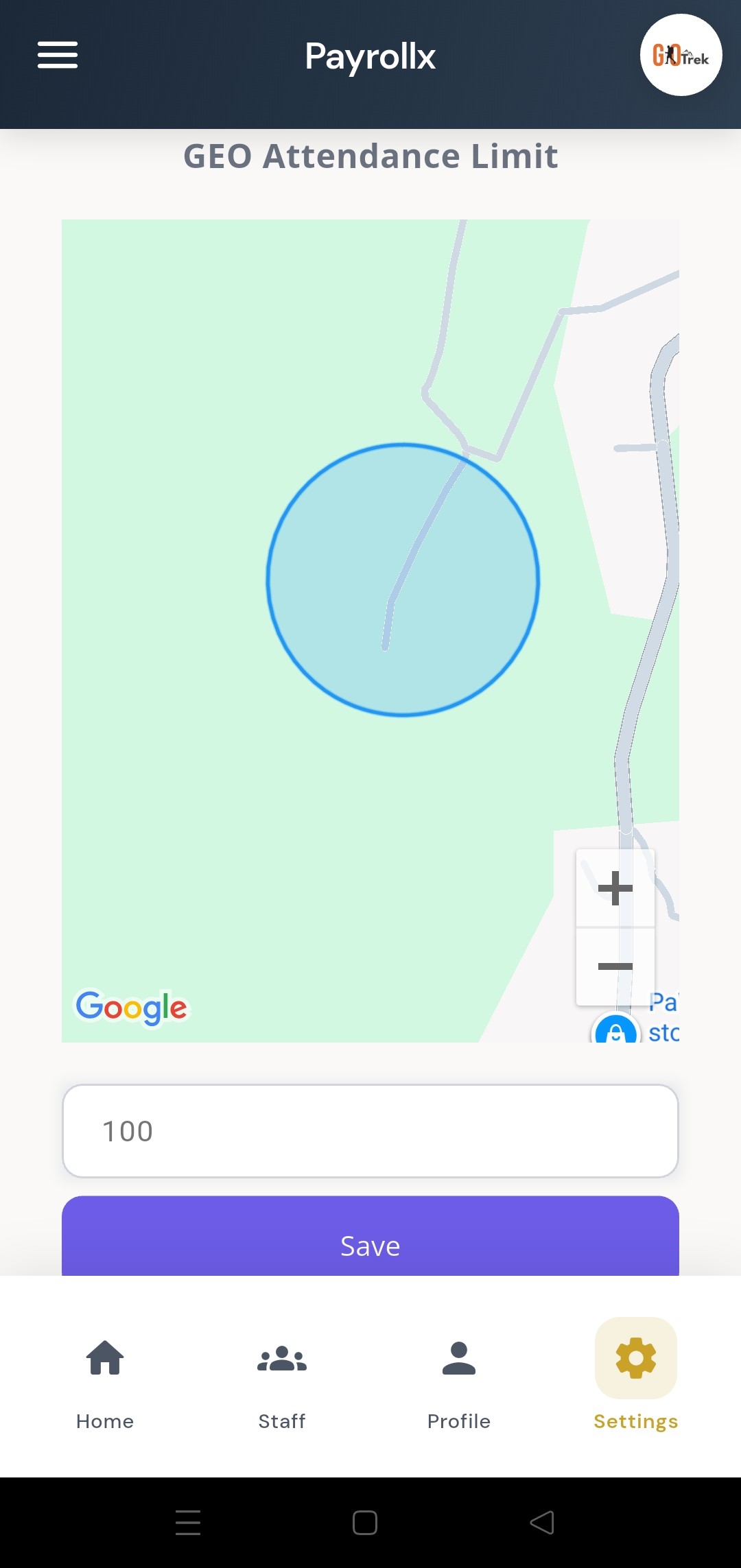
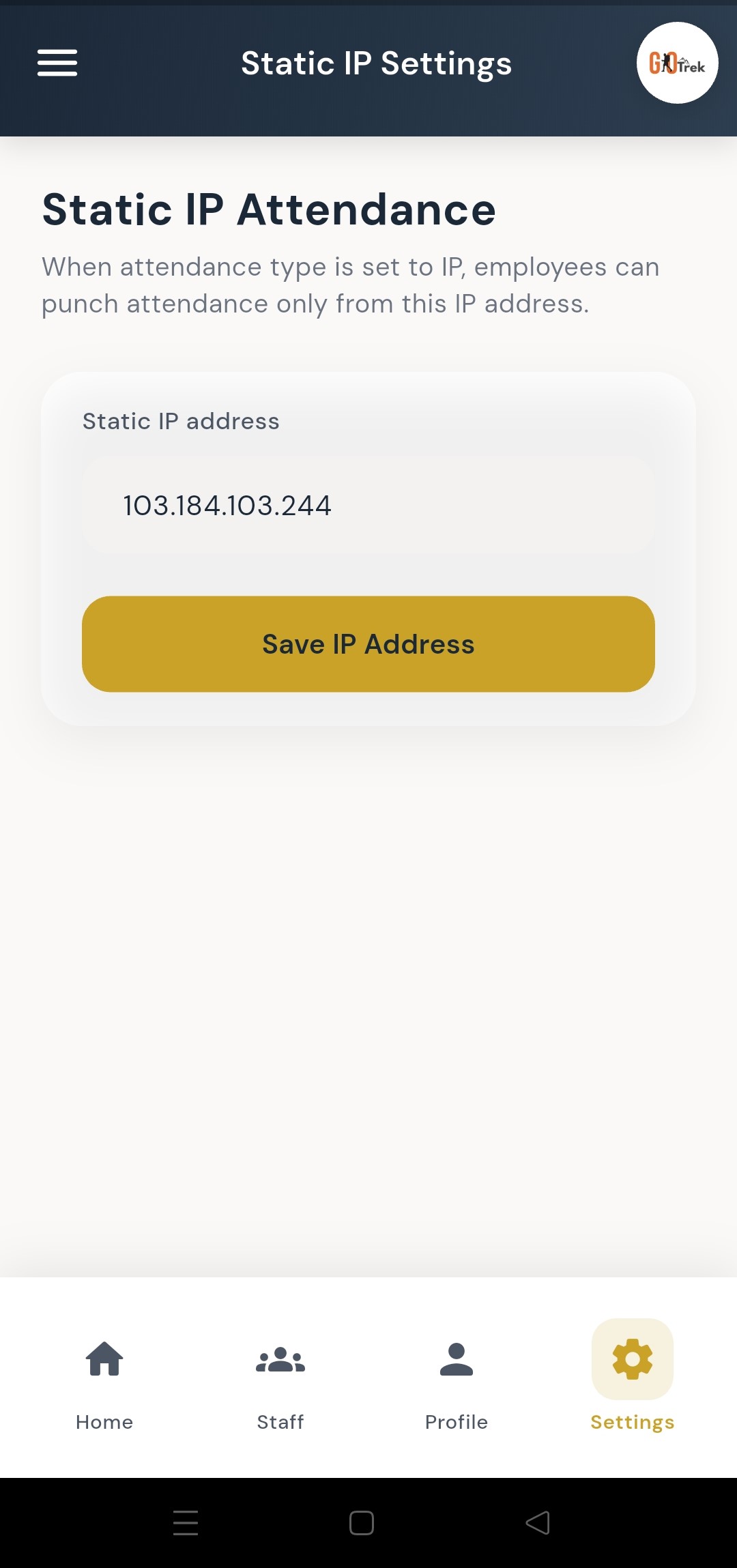
Settings control attendance rules. GEO attendance needs the employee to be inside your office location range. IP-based attendance needs the employee to punch from an allowed office internet IP.
Open Settings. If you use GEO attendance, add your office location and allowed range. If you use IP attendance, add your office static IP. Save changes so employee punches follow these rules.
Download the PayrollX Employer App, sign in with your employer account, and manage attendance, leaves, and staff anytime.
Document title: PayrollX Employer App feature guide.
Product: PayrollX Employer Android application.
Audience: Employers, business owners, HR managers, and office admins in India.
Related products: PayrollX Employer Web portal, PayrollX Employee Android App.
Download: Google Play package com.payrollx.payroll — https://play.google.com/store/apps/details?id=com.payrollx.payroll.
The PayrollX Employer App is an Android mobile app for business owners and HR managers. You can manage employees, attendance, leaves, holidays, expenses, announcements, departments, designations, shifts, and settings from your phone. Data syncs with the PayrollX employer web portal.
Who uses it: Employers, company owners, HR managers, and office admins who use PayrollX.
Platform: Android (Google Play)
Login: Employers sign in with email OTP (one-time code). No password required for login on the portal; the app uses secure employer login.
Q: What is the PayrollX Employer App?
A: It is the official Android app for employers to manage HR work on the go — staff, attendance, leaves, expenses, and company settings.
Q: Who should use this app?
A: Business owners, HR managers, and admins who already have a PayrollX employer account.
Q: Does it work with the website?
A: Yes. Changes in the employer app sync with the PayrollX employer web dashboard in real time.
Q: Is there a separate Employee App?
A: Yes. Employees use a different Android app to punch attendance and apply for leave. Employers use this Employer App to manage and approve everything.
Q: Where can I download it?
A: Download from Google Play: PayrollX Employer app (package com.payrollx.payroll).
Short: See your company status in one glance.
What it is: The home screen is your daily overview. It shows how many employees you have, today’s attendance, leave requests, expenses, and announcements.
What you can do:
How to use: Open the app after login. The first screen is Home. Tap any card to open that module.
Keywords: dashboard, home, overview, present today, quick access
Screenshots on this page: Home dashboard with quick access cards
Short: View and manage your employer profile.
What it is: Your company profile shows business name, contact person, phone, email, and address details used across PayrollX.
What you can do:
How to use: Open Profile from the bottom menu or sidebar. Review details and update them when needed from the linked profile screens.
Keywords: profile, company profile, employer details, address
Screenshots on this page: Employer / company profile
Short: Add, edit, search, and manage staff.
What it is: Employee management lets you create staff records, edit details, filter the list, and send login details so employees can open the Employee App.
What you can do:
How to use: Go to Staff / Employees. Tap Add Employee and fill step 1 and step 2. Save. To change details later, open the employee and tap Edit. Use filter to search by name or department.
Keywords: add employee, edit employee, staff list, send login, filter employee
Screenshots on this page: Manage employees list; Add new employee — step 1; Add new employee — step 2; Edit employee; Send login details by email; Filter employees
Short: Review punches, calendar view, and fix attendance.
What it is: Attendance shows when employees punched in and out. You can open a calendar, check any date, add or edit punch times, and adjust attendance in bulk when needed.
What you can do:
How to use: Open Employees, choose a person, then Attendance. Use Calendar View to pick a date. If punch out is missing, add the correct time. For many staff at once, use Bulk Attendance.
Keywords: attendance, punch in, punch out, calendar, bulk attendance, half day, absent
Screenshots on this page: Attendance calendar view; Open a date to see punches; Add punch time; Bulk attendance
Short: Approve or reject employee leave from your phone.
What it is: When an employee applies for leave in the Employee App, you see the request here. You can approve, reject, filter by date or employee, and check due or pending leaves.
What you can do:
How to use: Open Leave Requests from Home or menu. Tap a request to review details. Choose Approve or Reject. Use filters when the list is long.
Keywords: leave, approve leave, reject leave, casual leave, sick leave, paid leave
Screenshots on this page: Manage leave requests; Leave request details; Leave approved; Reject leave; Filter by employee; Filter by date
Short: Set company holidays and national holidays.
What it is: Holidays mark non-working days for attendance. You can add custom holidays (like Diwali) and also select national holidays that repeat every year.
What you can do:
How to use: Open Settings → Holidays (or Holidays from menu). Tap Add Holiday for a custom date, or open National Holidays to select yearly public holidays.
Keywords: holiday, national holiday, week off, Diwali, Christmas
Screenshots on this page: Manage holidays; Add a holiday; National holidays list
Short: Create and manage company departments.
What it is: Departments organize employees into teams such as Sales, HR, or Development. Every employee can be linked to a department.
What you can do:
How to use: Open Departments from settings or menu. Tap Add, enter the name, and save. Use Edit to rename later.
Keywords: department, team, organization
Screenshots on this page: Manage departments; Add department; Update department
Short: Define job titles for your staff.
What it is: Designations are job titles like Manager, Executive, or Developer. They help you classify roles when adding employees.
What you can do:
How to use: Open Designations. Tap Add, type the title, and save. Assign a designation when you create or edit an employee.
Keywords: designation, job title, role
Screenshots on this page: Manage designations; Add designation; Update designation
Short: Set working hours for your team.
What it is: Shifts define punch-in and punch-out windows (for example 9:00 AM to 6:00 PM). Attendance rules can use these shift times.
What you can do:
How to use: Open Shifts. Tap Add Shift, enter name and timings, then save. Edit anytime if office hours change.
Keywords: shift, working hours, punch time window
Screenshots on this page: Manage shifts; Add shift; Edit shift
Short: Track office spending and categories.
What it is: Expenses help you record office costs. You can create expense categories, add expense entries, and update them later.
What you can do:
How to use: Open Office Expenses. First create categories if needed. Then add expenses under the right category. Use Manage to edit older entries.
Keywords: expense, reimbursement, office cost, expense category
Screenshots on this page: Manage expenses; Add expense; Expense categories; Add expense category
Short: Share updates with your whole team.
What it is: Announcements let you send messages to employees — holidays notice, policy updates, or meeting reminders.
What you can do:
How to use: Open Announcements. Tap Add, write a clear message, and save. Employees can see it in their app.
Keywords: announcement, notice, company update
Screenshots on this page: Manage announcements; Add announcement; Update announcement
Short: Control how employees are allowed to punch.
What it is: Settings control attendance rules. GEO attendance needs the employee to be inside your office location range. IP-based attendance needs the employee to punch from an allowed office internet IP.
What you can do:
How to use: Open Settings. If you use GEO attendance, add your office location and allowed range. If you use IP attendance, add your office static IP. Save changes so employee punches follow these rules.
Keywords: settings, GEO, geofence, static IP, attendance type
Screenshots on this page: Settings; Add GEO location for attendance; Add IP address for IP-based punch
End of PayrollX Employer App document. For browser-based employer tools see Employer Web. For staff punch and leave see Employee App.